# Browser Use Cloud — Full Documentation
# Quick start
Source: https://docs.browser-use.com/cloud/quickstart
[Hosted Agents](https://docs.browser-use.com/cloud/agent/quickstart)
Give an agent a task and get the result.
[Browsers](https://docs.browser-use.com/cloud/browser/quickstart)
Launch a cloud browser and connect to it from your code.
Get an [API key](https://cloud.browser-use.com/settings?tab=api-keys&new=1) and
export it:
```bash
export BROWSER_USE_API_KEY=your_key
```
## Install the SDK
Skip this step if you use curl.
```bash Python
pip install browser-use-sdk
```
```bash TypeScript
npm install browser-use-sdk
```
## Run a hosted agent
```python Python
from browser_use_sdk.v4 import BrowserUse
client = BrowserUse()
run = client.runs.create(
"Find the top Hacker News story",
model="grok-4.5",
)
run = client.runs.wait_for_completion(run.id)
print(run.result)
```
```typescript TypeScript
import { BrowserUse } from "browser-use-sdk/v4";
const client = new BrowserUse();
const run = await client.runs.create({
task: "Find the top Hacker News story",
model: "grok-4.5",
});
const result = await client.runs.waitForCompletion(run.id);
console.log(result.result);
```
```bash curl
curl https://api.browser-use.com/api/v4/runs \
-H "X-Browser-Use-API-Key: $BROWSER_USE_API_KEY" \
-H "Content-Type: application/json" \
-d '{"task":"Find the top Hacker News story","model":"grok-4.5"}'
```
## Control a browser
Launch a browser, connect to its CDP URL, then stop it:
```python Python
from browser_use_sdk.v3 import BrowserUse
client = BrowserUse()
browser = client.browsers.create(proxy_country_code="us")
print(browser.cdp_url)
# When finished:
client.browsers.stop(browser.id)
```
```typescript TypeScript
import { BrowserUse } from "browser-use-sdk/v3";
const client = new BrowserUse();
const browser = await client.browsers.create({ proxyCountryCode: "us" });
console.log(browser.cdpUrl);
// When finished:
await client.browsers.stop(browser.id);
```
```bash curl
browser=$(curl -sS https://api.browser-use.com/api/v4/browsers \
-H "X-Browser-Use-API-Key: $BROWSER_USE_API_KEY" \
-H "Content-Type: application/json" \
-d '{"proxyCountryCode":"us"}')
export BROWSER_SESSION_ID=$(echo "$browser" | jq -r .id)
export BROWSER_USE_CDP_URL=$(echo "$browser" | jq -r .cdpUrl)
# Connect Playwright or Puppeteer to $BROWSER_USE_CDP_URL, then stop:
curl -X PATCH \
"https://api.browser-use.com/api/v4/browsers/$BROWSER_SESSION_ID" \
-H "X-Browser-Use-API-Key: $BROWSER_USE_API_KEY" \
-H "Content-Type: application/json" \
-d '{"action":"stop"}'
```
Closing Playwright, Puppeteer, or CDP does not stop the browser. Use
`client.browsers.stop(browser.id)` or call `PATCH /api/v4/browsers/{id}` with
`{"action":"stop"}`.
[Copy for an LLM](https://docs.browser-use.com/cloud/llms.txt)
Give your coding agent the compact API V4 context.
# Choosing an Agent
Source: https://docs.browser-use.com/cloud/choosing-an-agent
Browser Use Cloud offers three agents that can complete your tasks. Use V4 when accuracy matters most, V3 when speed and cost matter most, and V2 only for older integrations.
## At a glance
| | V4 Agent | V3 Agent | V2 Agent |
| ---------------------- | ------------------------ | ------------------------------------ | --------------------------------- |
| | Most accurate | Fastest | Legacy |
| Verdict | Choose for complex tasks | Choose for quick, cost-optimized work | Keep only for existing integrations |
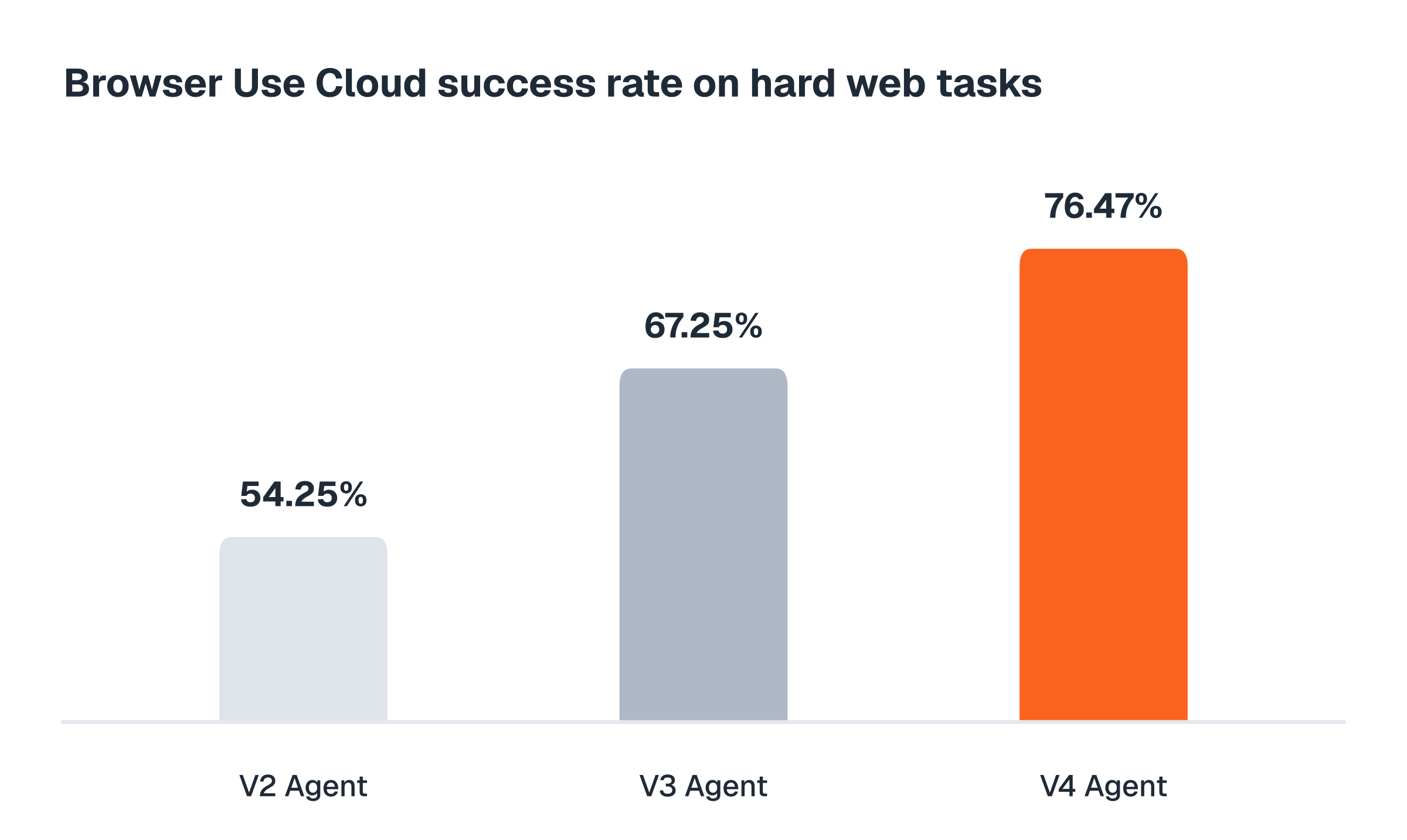
| Accuracy on hard tasks | **76%** | 67% | 54% |
| Speed | slower, more thorough | **fastest on identical tasks** | quick on small tasks |
| Cost level | \$\$\$ | \$\$ | \$ |
### V4 Agent — most accurate
V4 writes and runs code to complete long, multi-step browser tasks. It can research across many pages, compare options, follow detailed instructions, collect records, and save the results as a spreadsheet or in any format.
**Best for:**
- Bulk data collection
- Complex tasks that span many pages and sites
- Long, difficult instructions
**Example tasks:**
- "Collect every document with its title, reference, and deadline."
- "Create a spreadsheet of all the pricing plans across these five competitors."
The most thorough option, but it takes its time.
### V3 Agent — fastest
V3 looks at the page and acts step-by-step like a human would. Use only when cost and speed matter more than accuracy.
**Best for:**
- Simple tasks, such as finding publicly available information
- Workloads where cost and speed are essential
- Open-ended research
**Example tasks:**
- "Get a shipping quote for a 3 lb package between two zip codes."
- "Check whether this product is in stock and what it costs right now."
Faster but less reliable.
### V2 Agent — legacy
Our first-generation agent remains available for compatibility. It is based on our open-source repository, but it is not actively maintained and is less accurate.
Starting something new? Use V4 instead; it's far more accurate.
## V4 completes the hardest tasks
V4 completed 76% of difficult, real-world browser tasks — nine points ahead of V3 and twenty-two ahead of V2.
## Typical tasks cost \$0.70–\$1.64
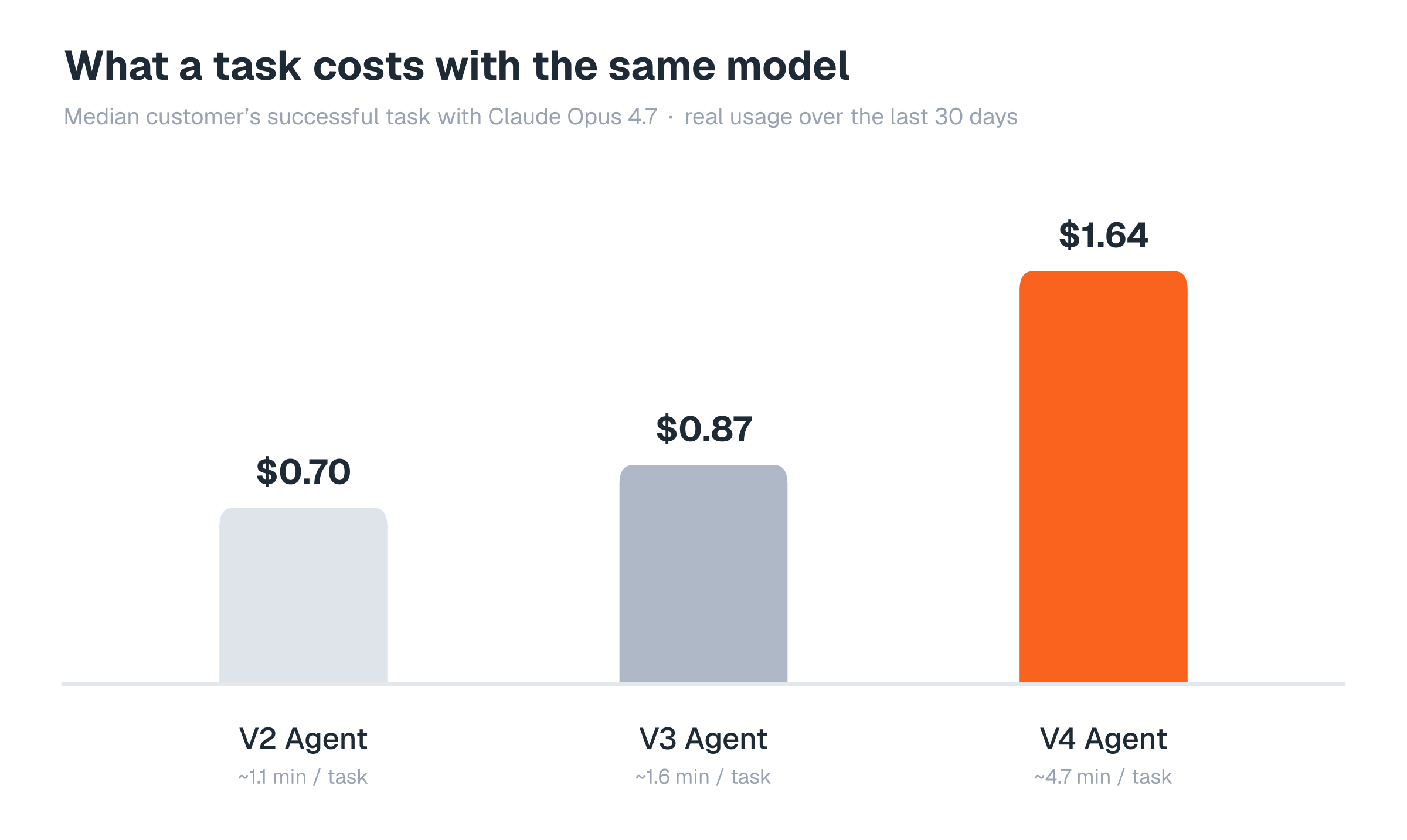
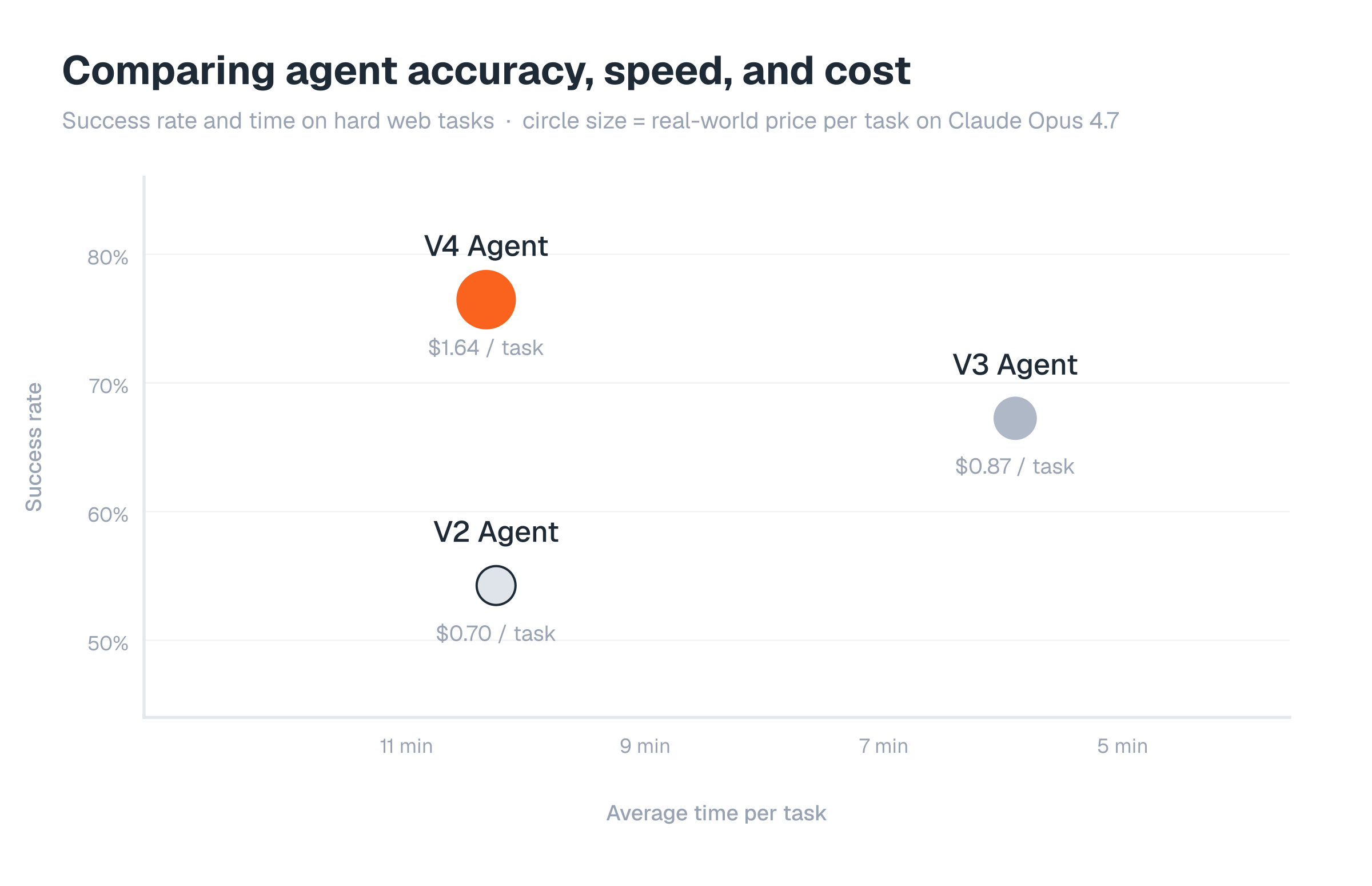
Measured with the same model — Claude Opus 4.7 — across the last 30 days of production usage, the typical customer's successful task costs \$0.70 on V2, \$0.87 on V3, and \$1.64 on V4, taking about 1, 2, and 5 minutes respectively. V4 costs more per task because customers use it for more complex work, and V2's tasks run shortest only because it gets the simplest ones. On identical hard tasks, V3 is the fastest agent (about 6 minutes, versus about 10 for V2 and V4).
| | V2 Agent | V3 Agent | V4 Agent |
| ------------- | -------- | -------- | -------- |
| Cost per task | \$0.70 | \$0.87 | \$1.64 |
| Time per task | ~1 min | ~2 min | ~5 min |
## Comparing accuracy, speed, and cost
## How we measured this
In July 2026, we ran each agent four times on Internal Bench Hard: 106 difficult tasks on real websites. Every run used Claude Opus 4.8, and the same independent judge scored each result. We left out tasks blocked by websites' anti-bot measures. The speed and cost figures are averages; simpler tasks usually run faster and cost less. Real-world cost and speed figures are the median customer's successful task with Claude Opus 4.7 over the last 30 days of production, our own testing excluded.
# Prompt for Vibecoders
Source: https://docs.browser-use.com/cloud/vibecoding
Copy this link and paste it into your coding agent (Cursor, Claude Code, Windsurf, etc.) — it contains all the context needed to build with Browser Use.
```
https://docs.browser-use.com/cloud/llms.txt
```
# Run a task
Source: https://docs.browser-use.com/cloud/agent/quickstart
Create an [API key](https://cloud.browser-use.com/settings?tab=api-keys&new=1) and export it:
```bash
export BROWSER_USE_API_KEY=your_key
```
```python Python
from browser_use_sdk.v4 import BrowserUse
client = BrowserUse()
run = client.runs.create(
"Find the top Hacker News story",
model="grok-4.5",
)
run = client.runs.wait_for_completion(run.id)
print(run.result)
```
```typescript TypeScript
import { BrowserUse } from "browser-use-sdk/v4";
const client = new BrowserUse();
const run = await client.runs.create({
task: "Find the top Hacker News story",
model: "grok-4.5",
});
const result = await client.runs.waitForCompletion(run.id);
console.log(result.result);
```
```bash curl
curl https://api.browser-use.com/api/v4/runs \
-H "X-Browser-Use-API-Key: $BROWSER_USE_API_KEY" \
-H "Content-Type: application/json" \
-d '{"task":"Find the top Hacker News story","model":"grok-4.5"}'
```
Install the SDK with `pip install browser-use-sdk` or
`npm install browser-use-sdk`. Curl needs no installation.
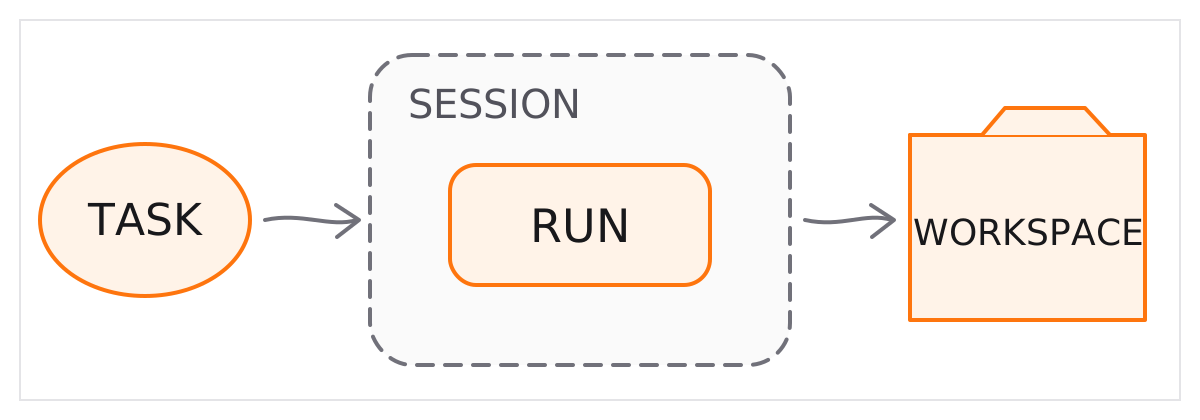
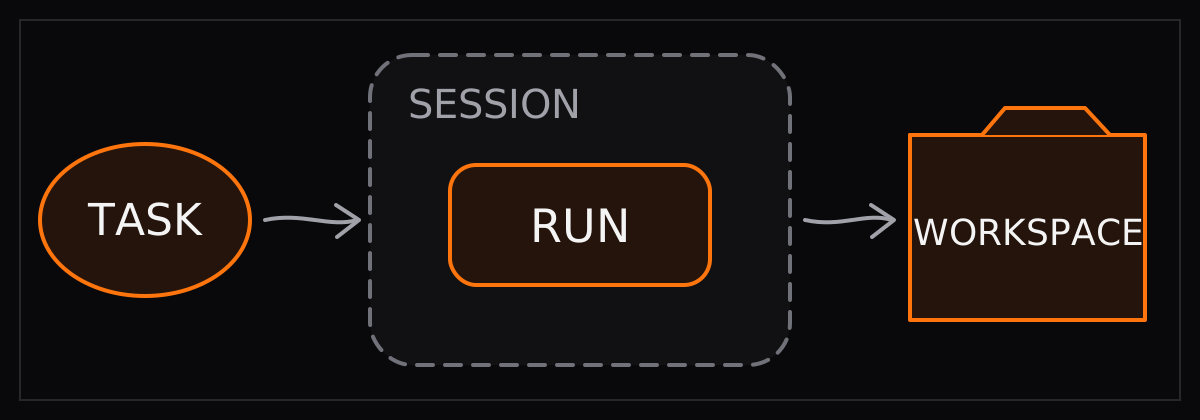
Every new run implicitly creates a [session](https://docs.browser-use.com/cloud/agent/sessions) for its
conversation and live browser, plus a [workspace](https://docs.browser-use.com/cloud/agent/workspaces) for
persistent files.
 [Copy API V4 docs](https://docs.browser-use.com/cloud/llms.txt)
Give the compact context file to your coding agent.
# Models
Source: https://docs.browser-use.com/cloud/agent/models
Omit `model` to use **GPT-5.6 Luna**, or pass a model ID when creating a run.
These are the recommended Browser Use-hosted models with published token
pricing:
| Model | API string | Input | Cache read | Output | BYOK |
| ----- | ---------- | ----: | ---------: | -----: | ---- |
| GPT-5.6 Luna (recommended) | `gpt-5.6-luna` | \$0.24 | \$0.024 | \$1.44 | OpenAI |
| Claude Opus 5 | `claude-opus-5` | \$6.00 | \$0.60 | \$30.00 | Anthropic |
| Grok 4.5 | `grok-4.5` | \$2.40 | \$0.36 | \$7.20 | — |
| GPT-5.6 Sol | `gpt-5.6-sol` | \$6.00 | \$0.60 | \$36.00 | OpenAI |
| MiniMax M3 | `minimax-m3` | \$0.36 | \$0.072 | \$1.44 | — |
Token prices are USD per 1 million tokens. Browser sessions
(\$0.02/hour) and network traffic (\$5/GB managed proxy or \$0.20/GB
proxyless/BYOP) are charged separately. See [full pricing](https://browser-use.com/pricing).
See [Thinking levels](https://docs.browser-use.com/cloud/agent/thinking-levels) for V4 `modelParams` and
the normalized `thinkingLevel` values available in V2 and V3.
We recommend **GPT-5.6 Luna** for most tasks. It combines near-Opus benchmark
performance with the lowest token price and fastest median response time in
current V4 production traffic.
## All supported V4 model IDs
The V4 request schema accepts the following model IDs. The Cloud dashboard may
show a smaller curated set; availability can also depend on your account's
rollout and configured provider key.
| Provider | Model IDs | BYOK provider |
| --- | --- | --- |
| Anthropic | `claude-opus-4.7`, `claude-opus-4.8`, `claude-opus-5`, `claude-fable-5`, `claude-sonnet-5` | Anthropic |
| OpenAI | `gpt-5.5`, `gpt-5.6`, `gpt-5.6-sol`, `gpt-5.6-terra`, `gpt-5.6-luna` | OpenAI |
| Google | `gemini-3-flash`, `gemini-3.1-pro`, `gemini-3.5-flash`, `gemini-3.6-flash` | Google |
| xAI | `grok-4.5` | — |
| Z.ai | `glm-5.2` | — |
| Moonshot AI | `kimi-k3` | — |
| MiniMax | `minimax-m3` | — |
See [Thinking levels](https://docs.browser-use.com/cloud/agent/thinking-levels) for the reasoning controls
accepted by each model. Not every model accepts `modelParams`.
The current generated SDK request types predate this contract. The
TypeScript model union does not yet include GPT-5.6 Luna or every model on
this page, and neither generated V4 request model exposes `modelParams`.
Use `POST /api/v4/runs` directly for those fields until the follow-up SDK
regeneration is released.
```python Python
from browser_use_sdk.v4 import BrowserUse
client = BrowserUse()
run = client.runs.create(
"Compare three project-management tools",
model="gpt-5.6-luna",
)
```
```typescript TypeScript
import { BrowserUse } from "browser-use-sdk/v4";
const client = new BrowserUse();
const run = await client.runs.create({
task: "Compare three project-management tools",
// Use REST for GPT-5.6 Luna until the generated union is updated.
model: "grok-4.5",
});
```
```bash curl
curl https://api.browser-use.com/api/v4/runs \
-H "X-Browser-Use-API-Key: $BROWSER_USE_API_KEY" \
-H "Content-Type: application/json" \
-d '{"task":"Compare three PM tools","model":"gpt-5.6-luna"}'
```
## Bring your own key
On plans with BYOK, add an Anthropic, OpenAI, or Google key under **Settings →
API Keys → Bring Your Own Key**. V4 uses it automatically for matching models;
no request flag is needed. You pay the provider directly, plus a 0.2× Browser
Use orchestration fee. Models from other providers use Browser Use-managed
keys.
# Thinking levels
Source: https://docs.browser-use.com/cloud/agent/thinking-levels
Browser Use exposes reasoning controls in two forms:
- **API V4** uses provider-native values inside `modelParams`.
- **API V3 and V2** use the provider-neutral `thinkingLevel` field with
`disabled`, `low`, `medium`, or `high`.
See [Models](https://docs.browser-use.com/cloud/agent/models) for the complete V4 model list, recommended
model, token pricing, and BYOK routes.
## API V4 model parameters
V4 forwards an allow-listed `modelParams` object to the selected provider. The
field names and accepted values therefore differ by model family.
| Model strings | Path | Accepted values |
| --- | --- | --- |
| `gpt-5.5` | `reasoning.effort` | `none`, `low`, `medium`, `high`, `xhigh` |
| `gpt-5.6`, `gpt-5.6-sol`, `gpt-5.6-terra`, `gpt-5.6-luna` | `reasoning.effort` | `none`, `low`, `medium`, `high`, `xhigh`, `max` |
| `claude-opus-4.7`, `claude-opus-4.8`, `claude-opus-5`, `claude-sonnet-5` | `output_config.effort` | `low`, `medium`, `high`, `xhigh`, `max` |
| Same Claude models | `thinking.type` | `adaptive`, `disabled` |
| Same Claude models | `thinking.display` | `omitted`, `summarized` |
| `gemini-3-flash`, `gemini-3.5-flash`, `gemini-3.6-flash` | `thinkingConfig.thinkingLevel` | `minimal`, `low`, `medium`, `high` |
| `gemini-3.1-pro` | `thinkingConfig.thinkingLevel` | `low`, `medium`, `high` |
`glm-5.2`, `grok-4.5`, `kimi-k3`, `minimax-m3`, and `claude-fable-5`
do not currently accept V4 `modelParams`.
Omitting `modelParams` applies Browser Use's defaults for that V4 model. For
example, `gpt-5.6-luna` defaults to `reasoning.effort: xhigh`. Send an empty
object (`"modelParams": {}`) to opt out and use the provider's defaults.
### V4 examples
```bash OpenAI
curl -X POST https://api.browser-use.com/api/v4/runs \
-H "X-Browser-Use-API-Key: $BROWSER_USE_API_KEY" \
-H "Content-Type: application/json" \
-d '{
"task": "Compare three project-management tools",
"model": "gpt-5.6-luna",
"modelParams": {"reasoning": {"effort": "high"}}
}'
```
```bash Anthropic
curl -X POST https://api.browser-use.com/api/v4/runs \
-H "X-Browser-Use-API-Key: $BROWSER_USE_API_KEY" \
-H "Content-Type: application/json" \
-d '{
"task": "Compare three project-management tools",
"model": "claude-opus-5",
"modelParams": {"output_config": {"effort": "high"}}
}'
```
```bash Google
curl -X POST https://api.browser-use.com/api/v4/runs \
-H "X-Browser-Use-API-Key: $BROWSER_USE_API_KEY" \
-H "Content-Type: application/json" \
-d '{
"task": "Compare three project-management tools",
"model": "gemini-3.6-flash",
"modelParams": {"thinkingConfig": {"thinkingLevel": "high"}}
}'
```
## API V3 support
V3 accepts the normalized REST field `thinkingLevel`. Legacy aliases are
normalized before validation: `bu-mini` maps to `gemini-3-flash`, `bu-max`
maps to `claude-sonnet-5`, and `bu-ultra` maps to `claude-opus-4.6`.
| Model strings | `disabled` | `low` | `medium` | `high` |
| --- | :---: | :---: | :---: | :---: |
| `bu-mini`, `gemini-3-flash`, `gemini-3.5-flash` | Yes | Yes | Yes | Yes |
| `bu-max`, `bu-ultra`, `claude-sonnet-4.6`, `claude-opus-4.6`, `claude-opus-4.7`, `claude-sonnet-5`, `claude-opus-4.8`, `claude-haiku-4.5` | Yes | Yes | Yes | Yes |
| `gpt-5.2`, `gpt-5.4-mini`, `gpt-5.5`, `gpt-5.6-sol`, `gpt-5.6-terra`, `gpt-5.6-luna` | Yes | Yes | Yes | Yes |
| `gpt-5-mini` | — | Yes | Yes | Yes |
| `gemini-3-pro`, `gemini-3.1-pro` | — | Yes | — | Yes |
| `glm-5.2` | Yes | — | — | Yes |
| `minimax-m3` | — | — | — | — |
For a follow-up task sent to an existing V3 session:
- Omit `thinkingLevel` to retain the session's current setting.
- Send a supported value to update the setting for the next task and later
follow-ups.
- Send `"thinkingLevel": null` to clear it and return to provider defaults.
The requested value is validated against the existing session's model, not
the request model default.
## API V2 support
V2 also accepts the normalized REST field `thinkingLevel`, but it has two
additional limitations. It cannot configure GLM thinking, and it cannot enable
fixed-budget thinking on older Claude 4/4.5 models because the legacy worker
cannot safely replay their thinking blocks. Those Claude models still accept
`disabled`.
| Model strings | `disabled` | `low` | `medium` | `high` |
| --- | :---: | :---: | :---: | :---: |
| `browser-use-llm`, `browser-use-2.0`, `gemini-2.5-flash`, `gemini-3-flash-preview`, `gemini-3.5-flash`, `gemini-flash-latest`, `gemini-flash-lite-latest` | Yes | Yes | Yes | Yes |
| `gemini-2.5-pro` | — | Yes | Yes | Yes |
| `gemini-3-pro-preview`, `gemini-3.1-pro-preview` | — | Yes | — | Yes |
| `o3`, `o4-mini` | — | Yes | Yes | Yes |
| `gpt-5.5`, `gpt-5.6-sol`, `gpt-5.6-terra`, `gpt-5.6-luna` | Yes | Yes | Yes | Yes |
| `claude-sonnet-5`, `claude-opus-4-7`, `claude-opus-4-8`, `claude-opus-5` | Yes | Yes | Yes | Yes |
| `claude-sonnet-4-20250514`, `claude-sonnet-4-5-20250929`, `claude-opus-4-5-20251101` | Yes | — | — | — |
| `gpt-4.1`, `gpt-4.1-mini`, `glm-5.2`, `minimax-m3`, `llama-4-maverick-17b-128e-instruct`, `claude-3-7-sonnet-20250219` | — | — | — | — |
V2's existing `thinking` boolean controls legacy agent behavior. It does not
select a provider reasoning depth and does not replace `thinkingLevel`.
## Provider mappings for V2 and V3
Browser Use validates the normalized V2/V3 value before dispatch, then maps it
to the provider's native control.
| Provider/model family | Mapping |
| --- | --- |
| Gemini 3 Flash | `disabled` becomes provider level `minimal`; `low`, `medium`, and `high` map directly. |
| Gemini 3.1 Pro | Supports only provider levels `low` and `high`. Legacy Gemini 3 Pro names route here. |
| Gemini 2.5 | Uses thinking budgets of 0, 1,024, 4,096, and 8,192 tokens. Gemini 2.5 Pro cannot use the zero-token budget. |
| Claude 4.6+ and Claude 5 | V3 uses adaptive thinking with the requested effort. V2 sends the effort without replaying thinking blocks. `disabled` turns thinking off where supported. |
| Earlier supported Claude 4/4.5 | Uses fixed budgets of 1,024, 4,096, and 8,192 tokens. V2 cannot enable these fixed-budget modes. |
| GPT-5.1+ | `disabled` becomes OpenAI reasoning effort `none`; the other levels map directly. |
| Earlier GPT-5, o3, and o4 | Supports `low`, `medium`, and `high`, but not `disabled`. |
| GLM | Exposes only a switch: `disabled` turns thinking off and `high` turns it on. V2 does not support the switch. |
## BYOK behavior
- **V2:** `thinkingLevel` uses the existing model route. It does not add a
per-request BYOK switch.
- **V3:** set `useOwnKey: true` for models that require a provider key. Native
and BYOK routes use the same support matrix.
- **V4:** add an Anthropic, OpenAI, or Google key under **Settings → API Keys →
Bring Your Own Key**. V4 automatically uses a matching key; there is no
request flag. `modelParams` works the same with Browser Use-managed and
customer-managed keys.
## V2 and V3 examples
REST JSON uses the camelCase wire field `thinkingLevel` in both API versions.
```bash API V3
curl -X POST https://api.browser-use.com/api/v3/sessions \
-H "X-Browser-Use-API-Key: $BROWSER_USE_API_KEY" \
-H "Content-Type: application/json" \
-d '{
"task": "Compare three project-management tools",
"model": "claude-opus-4.7",
"thinkingLevel": "high"
}'
```
```bash API V2
curl -X POST https://api.browser-use.com/api/v2/tasks \
-H "X-Browser-Use-API-Key: $BROWSER_USE_API_KEY" \
-H "Content-Type: application/json" \
-d '{
"task": "Compare three project-management tools",
"llm": "browser-use-2.0",
"thinkingLevel": "high"
}'
```
## Validation errors
Unsupported V2/V3 model-level pairs return HTTP 422. The request field is
camelCase, while the validation detail currently names the backend field in
snake_case:
```text
Model "gemini-3.1-pro" (provider "google") does not support thinking_level="medium". Supported values: low, high
```
V4 validates the provider-native path and uses its wire name in the error:
```text
Model "gemini-3.1-pro" does not support modelParams.thinkingConfig.thinkingLevel='minimal'. Supported values: high, low, medium
```
## Compatibility and API references
The normalized V2/V3 field is optional and nullable. New sessions use provider
defaults until a level is supplied. Existing V3 sessions retain their current
setting when the field is omitted; send `null` to clear it. The checked-in
generated SDK clients do not expose this field yet, so use the REST examples
above until the follow-up SDK regeneration is released. V4 SDK clients can
send `modelParams` once their generated V4 type includes the current contract.
[V4 create run](https://docs.browser-use.com/cloud/api-v4/runs/create-run)
Generated V4 `modelParams` schema.
[V3 create session](https://docs.browser-use.com/cloud/api-v3/sessions/create-session)
Generated V3 `thinkingLevel` schema.
[V2 create task](https://docs.browser-use.com/cloud/api-v2/tasks/create-task)
Generated V2 `thinkingLevel` schema.
# Structured output
Source: https://docs.browser-use.com/cloud/agent/structured-output
V4 returns `run.result` as a string. Ask for JSON only, then validate it
client-side:
```python Python
from browser_use_sdk.v4 import BrowserUse
from pydantic import BaseModel
client = BrowserUse()
class Story(BaseModel):
title: str
points: int
run = client.runs.create(
'Find the top HN story. Return only {"title":"...","points":0}.'
)
run = client.runs.wait_for_completion(run.id)
story = Story.model_validate_json(run.result or "{}")
```
```typescript TypeScript
import { BrowserUse } from "browser-use-sdk/v4";
import { z } from "zod";
const client = new BrowserUse();
const Story = z.object({
title: z.string(),
points: z.number(),
});
const run = await client.runs.create({
task: 'Find the top HN story. Return only {"title":"...","points":0}.',
model: "grok-4.5",
});
const result = await client.runs.waitForCompletion(run.id);
const story = Story.parse(JSON.parse(result.result ?? "{}"));
```
V4 does not accept `output_schema` / `outputSchema`. Handle validation errors
and retry with a [session follow-up](https://docs.browser-use.com/cloud/agent/sessions) when needed.
# Sessions
Source: https://docs.browser-use.com/cloud/agent/sessions
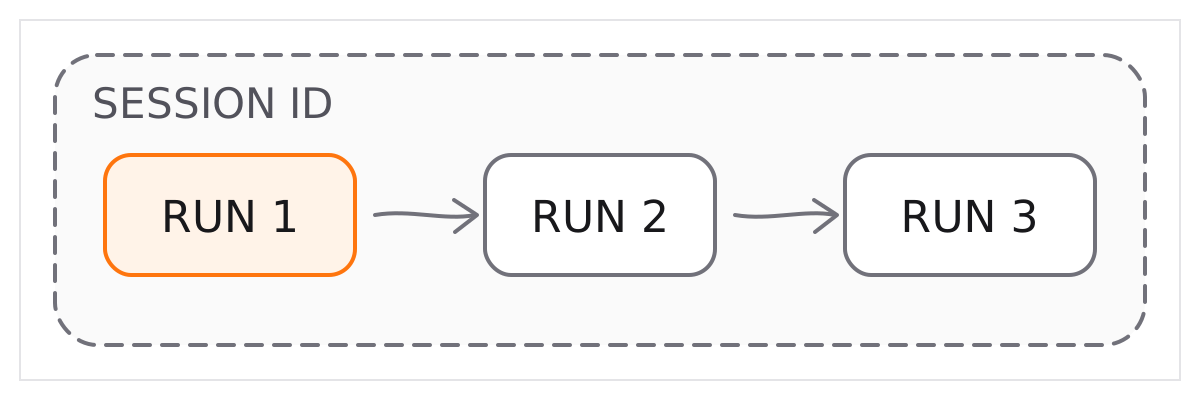
A **session** holds the agent's conversation and can reuse its live browser.
One session ID can contain multiple runs. Every run creates a session implicitly
unless you pass an existing session ID.
[Copy API V4 docs](https://docs.browser-use.com/cloud/llms.txt)
Give the compact context file to your coding agent.
# Models
Source: https://docs.browser-use.com/cloud/agent/models
Omit `model` to use **GPT-5.6 Luna**, or pass a model ID when creating a run.
These are the recommended Browser Use-hosted models with published token
pricing:
| Model | API string | Input | Cache read | Output | BYOK |
| ----- | ---------- | ----: | ---------: | -----: | ---- |
| GPT-5.6 Luna (recommended) | `gpt-5.6-luna` | \$0.24 | \$0.024 | \$1.44 | OpenAI |
| Claude Opus 5 | `claude-opus-5` | \$6.00 | \$0.60 | \$30.00 | Anthropic |
| Grok 4.5 | `grok-4.5` | \$2.40 | \$0.36 | \$7.20 | — |
| GPT-5.6 Sol | `gpt-5.6-sol` | \$6.00 | \$0.60 | \$36.00 | OpenAI |
| MiniMax M3 | `minimax-m3` | \$0.36 | \$0.072 | \$1.44 | — |
Token prices are USD per 1 million tokens. Browser sessions
(\$0.02/hour) and network traffic (\$5/GB managed proxy or \$0.20/GB
proxyless/BYOP) are charged separately. See [full pricing](https://browser-use.com/pricing).
See [Thinking levels](https://docs.browser-use.com/cloud/agent/thinking-levels) for V4 `modelParams` and
the normalized `thinkingLevel` values available in V2 and V3.
We recommend **GPT-5.6 Luna** for most tasks. It combines near-Opus benchmark
performance with the lowest token price and fastest median response time in
current V4 production traffic.
## All supported V4 model IDs
The V4 request schema accepts the following model IDs. The Cloud dashboard may
show a smaller curated set; availability can also depend on your account's
rollout and configured provider key.
| Provider | Model IDs | BYOK provider |
| --- | --- | --- |
| Anthropic | `claude-opus-4.7`, `claude-opus-4.8`, `claude-opus-5`, `claude-fable-5`, `claude-sonnet-5` | Anthropic |
| OpenAI | `gpt-5.5`, `gpt-5.6`, `gpt-5.6-sol`, `gpt-5.6-terra`, `gpt-5.6-luna` | OpenAI |
| Google | `gemini-3-flash`, `gemini-3.1-pro`, `gemini-3.5-flash`, `gemini-3.6-flash` | Google |
| xAI | `grok-4.5` | — |
| Z.ai | `glm-5.2` | — |
| Moonshot AI | `kimi-k3` | — |
| MiniMax | `minimax-m3` | — |
See [Thinking levels](https://docs.browser-use.com/cloud/agent/thinking-levels) for the reasoning controls
accepted by each model. Not every model accepts `modelParams`.
The current generated SDK request types predate this contract. The
TypeScript model union does not yet include GPT-5.6 Luna or every model on
this page, and neither generated V4 request model exposes `modelParams`.
Use `POST /api/v4/runs` directly for those fields until the follow-up SDK
regeneration is released.
```python Python
from browser_use_sdk.v4 import BrowserUse
client = BrowserUse()
run = client.runs.create(
"Compare three project-management tools",
model="gpt-5.6-luna",
)
```
```typescript TypeScript
import { BrowserUse } from "browser-use-sdk/v4";
const client = new BrowserUse();
const run = await client.runs.create({
task: "Compare three project-management tools",
// Use REST for GPT-5.6 Luna until the generated union is updated.
model: "grok-4.5",
});
```
```bash curl
curl https://api.browser-use.com/api/v4/runs \
-H "X-Browser-Use-API-Key: $BROWSER_USE_API_KEY" \
-H "Content-Type: application/json" \
-d '{"task":"Compare three PM tools","model":"gpt-5.6-luna"}'
```
## Bring your own key
On plans with BYOK, add an Anthropic, OpenAI, or Google key under **Settings →
API Keys → Bring Your Own Key**. V4 uses it automatically for matching models;
no request flag is needed. You pay the provider directly, plus a 0.2× Browser
Use orchestration fee. Models from other providers use Browser Use-managed
keys.
# Thinking levels
Source: https://docs.browser-use.com/cloud/agent/thinking-levels
Browser Use exposes reasoning controls in two forms:
- **API V4** uses provider-native values inside `modelParams`.
- **API V3 and V2** use the provider-neutral `thinkingLevel` field with
`disabled`, `low`, `medium`, or `high`.
See [Models](https://docs.browser-use.com/cloud/agent/models) for the complete V4 model list, recommended
model, token pricing, and BYOK routes.
## API V4 model parameters
V4 forwards an allow-listed `modelParams` object to the selected provider. The
field names and accepted values therefore differ by model family.
| Model strings | Path | Accepted values |
| --- | --- | --- |
| `gpt-5.5` | `reasoning.effort` | `none`, `low`, `medium`, `high`, `xhigh` |
| `gpt-5.6`, `gpt-5.6-sol`, `gpt-5.6-terra`, `gpt-5.6-luna` | `reasoning.effort` | `none`, `low`, `medium`, `high`, `xhigh`, `max` |
| `claude-opus-4.7`, `claude-opus-4.8`, `claude-opus-5`, `claude-sonnet-5` | `output_config.effort` | `low`, `medium`, `high`, `xhigh`, `max` |
| Same Claude models | `thinking.type` | `adaptive`, `disabled` |
| Same Claude models | `thinking.display` | `omitted`, `summarized` |
| `gemini-3-flash`, `gemini-3.5-flash`, `gemini-3.6-flash` | `thinkingConfig.thinkingLevel` | `minimal`, `low`, `medium`, `high` |
| `gemini-3.1-pro` | `thinkingConfig.thinkingLevel` | `low`, `medium`, `high` |
`glm-5.2`, `grok-4.5`, `kimi-k3`, `minimax-m3`, and `claude-fable-5`
do not currently accept V4 `modelParams`.
Omitting `modelParams` applies Browser Use's defaults for that V4 model. For
example, `gpt-5.6-luna` defaults to `reasoning.effort: xhigh`. Send an empty
object (`"modelParams": {}`) to opt out and use the provider's defaults.
### V4 examples
```bash OpenAI
curl -X POST https://api.browser-use.com/api/v4/runs \
-H "X-Browser-Use-API-Key: $BROWSER_USE_API_KEY" \
-H "Content-Type: application/json" \
-d '{
"task": "Compare three project-management tools",
"model": "gpt-5.6-luna",
"modelParams": {"reasoning": {"effort": "high"}}
}'
```
```bash Anthropic
curl -X POST https://api.browser-use.com/api/v4/runs \
-H "X-Browser-Use-API-Key: $BROWSER_USE_API_KEY" \
-H "Content-Type: application/json" \
-d '{
"task": "Compare three project-management tools",
"model": "claude-opus-5",
"modelParams": {"output_config": {"effort": "high"}}
}'
```
```bash Google
curl -X POST https://api.browser-use.com/api/v4/runs \
-H "X-Browser-Use-API-Key: $BROWSER_USE_API_KEY" \
-H "Content-Type: application/json" \
-d '{
"task": "Compare three project-management tools",
"model": "gemini-3.6-flash",
"modelParams": {"thinkingConfig": {"thinkingLevel": "high"}}
}'
```
## API V3 support
V3 accepts the normalized REST field `thinkingLevel`. Legacy aliases are
normalized before validation: `bu-mini` maps to `gemini-3-flash`, `bu-max`
maps to `claude-sonnet-5`, and `bu-ultra` maps to `claude-opus-4.6`.
| Model strings | `disabled` | `low` | `medium` | `high` |
| --- | :---: | :---: | :---: | :---: |
| `bu-mini`, `gemini-3-flash`, `gemini-3.5-flash` | Yes | Yes | Yes | Yes |
| `bu-max`, `bu-ultra`, `claude-sonnet-4.6`, `claude-opus-4.6`, `claude-opus-4.7`, `claude-sonnet-5`, `claude-opus-4.8`, `claude-haiku-4.5` | Yes | Yes | Yes | Yes |
| `gpt-5.2`, `gpt-5.4-mini`, `gpt-5.5`, `gpt-5.6-sol`, `gpt-5.6-terra`, `gpt-5.6-luna` | Yes | Yes | Yes | Yes |
| `gpt-5-mini` | — | Yes | Yes | Yes |
| `gemini-3-pro`, `gemini-3.1-pro` | — | Yes | — | Yes |
| `glm-5.2` | Yes | — | — | Yes |
| `minimax-m3` | — | — | — | — |
For a follow-up task sent to an existing V3 session:
- Omit `thinkingLevel` to retain the session's current setting.
- Send a supported value to update the setting for the next task and later
follow-ups.
- Send `"thinkingLevel": null` to clear it and return to provider defaults.
The requested value is validated against the existing session's model, not
the request model default.
## API V2 support
V2 also accepts the normalized REST field `thinkingLevel`, but it has two
additional limitations. It cannot configure GLM thinking, and it cannot enable
fixed-budget thinking on older Claude 4/4.5 models because the legacy worker
cannot safely replay their thinking blocks. Those Claude models still accept
`disabled`.
| Model strings | `disabled` | `low` | `medium` | `high` |
| --- | :---: | :---: | :---: | :---: |
| `browser-use-llm`, `browser-use-2.0`, `gemini-2.5-flash`, `gemini-3-flash-preview`, `gemini-3.5-flash`, `gemini-flash-latest`, `gemini-flash-lite-latest` | Yes | Yes | Yes | Yes |
| `gemini-2.5-pro` | — | Yes | Yes | Yes |
| `gemini-3-pro-preview`, `gemini-3.1-pro-preview` | — | Yes | — | Yes |
| `o3`, `o4-mini` | — | Yes | Yes | Yes |
| `gpt-5.5`, `gpt-5.6-sol`, `gpt-5.6-terra`, `gpt-5.6-luna` | Yes | Yes | Yes | Yes |
| `claude-sonnet-5`, `claude-opus-4-7`, `claude-opus-4-8`, `claude-opus-5` | Yes | Yes | Yes | Yes |
| `claude-sonnet-4-20250514`, `claude-sonnet-4-5-20250929`, `claude-opus-4-5-20251101` | Yes | — | — | — |
| `gpt-4.1`, `gpt-4.1-mini`, `glm-5.2`, `minimax-m3`, `llama-4-maverick-17b-128e-instruct`, `claude-3-7-sonnet-20250219` | — | — | — | — |
V2's existing `thinking` boolean controls legacy agent behavior. It does not
select a provider reasoning depth and does not replace `thinkingLevel`.
## Provider mappings for V2 and V3
Browser Use validates the normalized V2/V3 value before dispatch, then maps it
to the provider's native control.
| Provider/model family | Mapping |
| --- | --- |
| Gemini 3 Flash | `disabled` becomes provider level `minimal`; `low`, `medium`, and `high` map directly. |
| Gemini 3.1 Pro | Supports only provider levels `low` and `high`. Legacy Gemini 3 Pro names route here. |
| Gemini 2.5 | Uses thinking budgets of 0, 1,024, 4,096, and 8,192 tokens. Gemini 2.5 Pro cannot use the zero-token budget. |
| Claude 4.6+ and Claude 5 | V3 uses adaptive thinking with the requested effort. V2 sends the effort without replaying thinking blocks. `disabled` turns thinking off where supported. |
| Earlier supported Claude 4/4.5 | Uses fixed budgets of 1,024, 4,096, and 8,192 tokens. V2 cannot enable these fixed-budget modes. |
| GPT-5.1+ | `disabled` becomes OpenAI reasoning effort `none`; the other levels map directly. |
| Earlier GPT-5, o3, and o4 | Supports `low`, `medium`, and `high`, but not `disabled`. |
| GLM | Exposes only a switch: `disabled` turns thinking off and `high` turns it on. V2 does not support the switch. |
## BYOK behavior
- **V2:** `thinkingLevel` uses the existing model route. It does not add a
per-request BYOK switch.
- **V3:** set `useOwnKey: true` for models that require a provider key. Native
and BYOK routes use the same support matrix.
- **V4:** add an Anthropic, OpenAI, or Google key under **Settings → API Keys →
Bring Your Own Key**. V4 automatically uses a matching key; there is no
request flag. `modelParams` works the same with Browser Use-managed and
customer-managed keys.
## V2 and V3 examples
REST JSON uses the camelCase wire field `thinkingLevel` in both API versions.
```bash API V3
curl -X POST https://api.browser-use.com/api/v3/sessions \
-H "X-Browser-Use-API-Key: $BROWSER_USE_API_KEY" \
-H "Content-Type: application/json" \
-d '{
"task": "Compare three project-management tools",
"model": "claude-opus-4.7",
"thinkingLevel": "high"
}'
```
```bash API V2
curl -X POST https://api.browser-use.com/api/v2/tasks \
-H "X-Browser-Use-API-Key: $BROWSER_USE_API_KEY" \
-H "Content-Type: application/json" \
-d '{
"task": "Compare three project-management tools",
"llm": "browser-use-2.0",
"thinkingLevel": "high"
}'
```
## Validation errors
Unsupported V2/V3 model-level pairs return HTTP 422. The request field is
camelCase, while the validation detail currently names the backend field in
snake_case:
```text
Model "gemini-3.1-pro" (provider "google") does not support thinking_level="medium". Supported values: low, high
```
V4 validates the provider-native path and uses its wire name in the error:
```text
Model "gemini-3.1-pro" does not support modelParams.thinkingConfig.thinkingLevel='minimal'. Supported values: high, low, medium
```
## Compatibility and API references
The normalized V2/V3 field is optional and nullable. New sessions use provider
defaults until a level is supplied. Existing V3 sessions retain their current
setting when the field is omitted; send `null` to clear it. The checked-in
generated SDK clients do not expose this field yet, so use the REST examples
above until the follow-up SDK regeneration is released. V4 SDK clients can
send `modelParams` once their generated V4 type includes the current contract.
[V4 create run](https://docs.browser-use.com/cloud/api-v4/runs/create-run)
Generated V4 `modelParams` schema.
[V3 create session](https://docs.browser-use.com/cloud/api-v3/sessions/create-session)
Generated V3 `thinkingLevel` schema.
[V2 create task](https://docs.browser-use.com/cloud/api-v2/tasks/create-task)
Generated V2 `thinkingLevel` schema.
# Structured output
Source: https://docs.browser-use.com/cloud/agent/structured-output
V4 returns `run.result` as a string. Ask for JSON only, then validate it
client-side:
```python Python
from browser_use_sdk.v4 import BrowserUse
from pydantic import BaseModel
client = BrowserUse()
class Story(BaseModel):
title: str
points: int
run = client.runs.create(
'Find the top HN story. Return only {"title":"...","points":0}.'
)
run = client.runs.wait_for_completion(run.id)
story = Story.model_validate_json(run.result or "{}")
```
```typescript TypeScript
import { BrowserUse } from "browser-use-sdk/v4";
import { z } from "zod";
const client = new BrowserUse();
const Story = z.object({
title: z.string(),
points: z.number(),
});
const run = await client.runs.create({
task: 'Find the top HN story. Return only {"title":"...","points":0}.',
model: "grok-4.5",
});
const result = await client.runs.waitForCompletion(run.id);
const story = Story.parse(JSON.parse(result.result ?? "{}"));
```
V4 does not accept `output_schema` / `outputSchema`. Handle validation errors
and retry with a [session follow-up](https://docs.browser-use.com/cloud/agent/sessions) when needed.
# Sessions
Source: https://docs.browser-use.com/cloud/agent/sessions
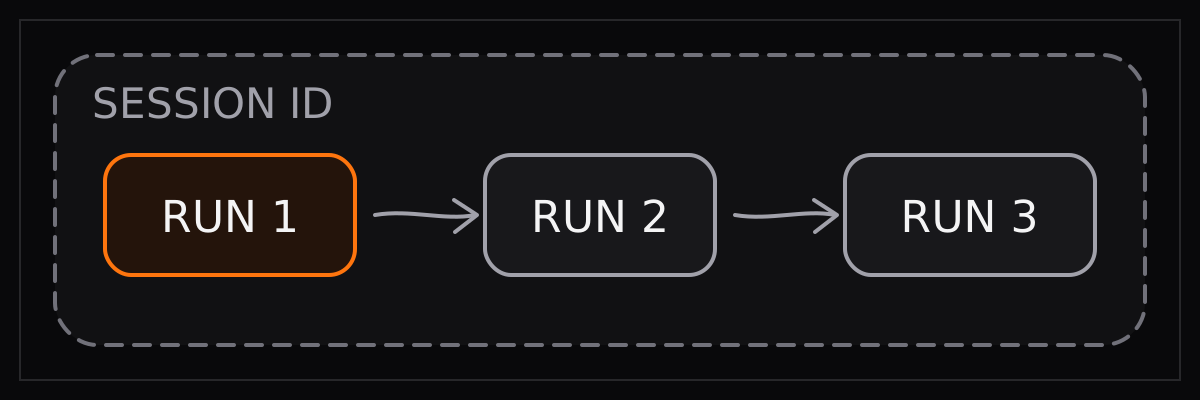
A **session** holds the agent's conversation and can reuse its live browser.
One session ID can contain multiple runs. Every run creates a session implicitly
unless you pass an existing session ID.
 Pass `session_id` / `sessionId` to continue:
```python Python
first = client.runs.create("Open Hacker News")
client.runs.wait_for_completion(first.id)
follow_up = client.runs.create(
"Now summarize the top story",
session_id=first.session_id,
)
result = client.runs.wait_for_completion(follow_up.id)
print(result.result)
```
```typescript TypeScript
const first = await client.runs.create({
task: "Open Hacker News",
model: "grok-4.5",
});
await client.runs.waitForCompletion(first.id);
const followUp = await client.runs.create({
task: "Now summarize the top story",
model: "grok-4.5",
sessionId: first.sessionId,
});
const result = await client.runs.waitForCompletion(followUp.id);
console.log(result.result);
```
Omit the session ID for a new conversation. Pass only a [workspace
ID](https://docs.browser-use.com/cloud/agent/workspaces) when you want a fresh conversation that keeps the
same files.
# Workspaces & files
Source: https://docs.browser-use.com/cloud/agent/workspaces
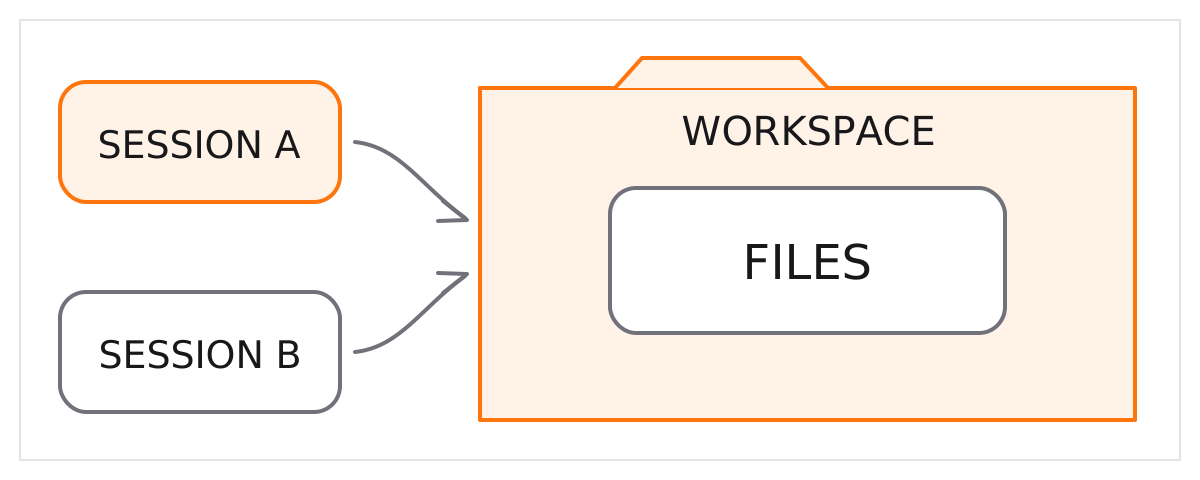
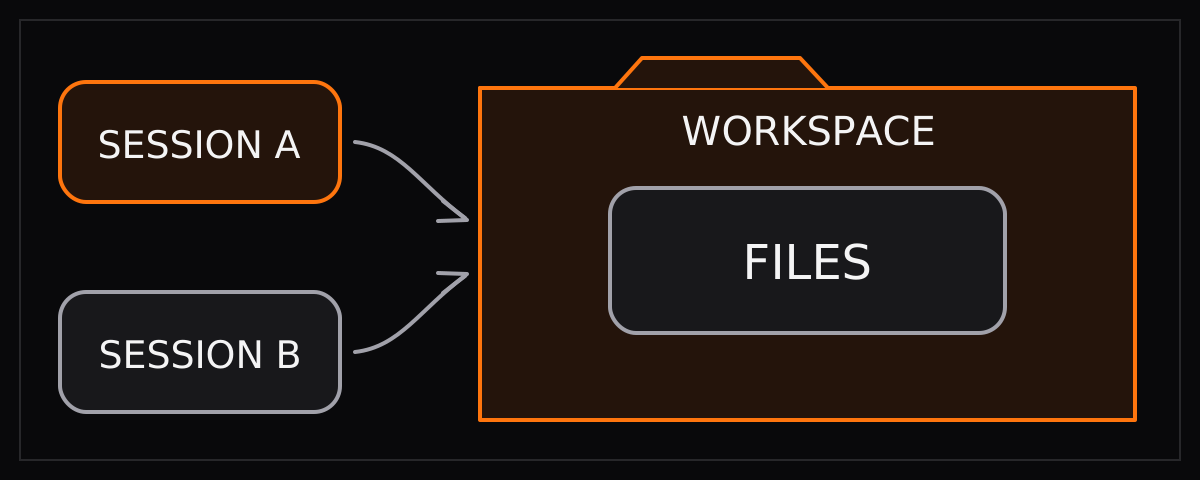
A **workspace** is a persistent filesystem shared by runs—even runs in
different sessions. Use it for inputs, scripts, and generated files.
Pass `session_id` / `sessionId` to continue:
```python Python
first = client.runs.create("Open Hacker News")
client.runs.wait_for_completion(first.id)
follow_up = client.runs.create(
"Now summarize the top story",
session_id=first.session_id,
)
result = client.runs.wait_for_completion(follow_up.id)
print(result.result)
```
```typescript TypeScript
const first = await client.runs.create({
task: "Open Hacker News",
model: "grok-4.5",
});
await client.runs.waitForCompletion(first.id);
const followUp = await client.runs.create({
task: "Now summarize the top story",
model: "grok-4.5",
sessionId: first.sessionId,
});
const result = await client.runs.waitForCompletion(followUp.id);
console.log(result.result);
```
Omit the session ID for a new conversation. Pass only a [workspace
ID](https://docs.browser-use.com/cloud/agent/workspaces) when you want a fresh conversation that keeps the
same files.
# Workspaces & files
Source: https://docs.browser-use.com/cloud/agent/workspaces
A **workspace** is a persistent filesystem shared by runs—even runs in
different sessions. Use it for inputs, scripts, and generated files.
 ## Upload and attach a file
```python Python
from browser_use_sdk.v4 import BrowserUse
client = BrowserUse()
workspace = client.workspaces.create(name="research")
uploaded = client.workspaces.upload(workspace.id, "people.csv")
run = client.runs.create(
"Find everyone in the CSV who works at Google",
workspace_id=workspace.id,
attached_file_ids=[uploaded[0].id],
)
```
```typescript TypeScript
import { BrowserUse } from "browser-use-sdk/v4";
const client = new BrowserUse();
const workspace = await client.workspaces.create({
name: "research",
});
const uploaded = await client.workspaces.upload(
workspace.id,
"people.csv",
);
const run = await client.runs.create({
task: "Find everyone in the CSV who works at Google",
model: "grok-4.5",
workspaceId: workspace.id,
attachedFileIds: [uploaded[0].id],
});
```
Attachments are run-scoped. Reusing a workspace does not reattach every upload.
## Retrieve created files
Ask the agent to save its output, then list the workspace:
```python Python
files = client.workspaces.files(
workspace.id,
include_urls=True,
)
for file in files.files:
print(file.path, file.url)
```
```typescript TypeScript
const files = await client.workspaces.files(
workspace.id,
{ includeUrls: true },
);
for (const file of files.files) {
console.log(file.path, file.url);
}
```
Download URLs expire after 60 seconds. See the [workspace API
reference](https://docs.browser-use.com/cloud/api-v4/workspaces/list-workspace-files) for pagination and
limits.
# Scripts
Source: https://docs.browser-use.com/cloud/agent/scripts
Scripts turn a successful browser run into a reusable
[workspace](https://docs.browser-use.com/cloud/agent/workspaces) asset. The agent writes and tests the
helper once. Later runs execute it first and repair it only when the site
changes.
## Upload and attach a file
```python Python
from browser_use_sdk.v4 import BrowserUse
client = BrowserUse()
workspace = client.workspaces.create(name="research")
uploaded = client.workspaces.upload(workspace.id, "people.csv")
run = client.runs.create(
"Find everyone in the CSV who works at Google",
workspace_id=workspace.id,
attached_file_ids=[uploaded[0].id],
)
```
```typescript TypeScript
import { BrowserUse } from "browser-use-sdk/v4";
const client = new BrowserUse();
const workspace = await client.workspaces.create({
name: "research",
});
const uploaded = await client.workspaces.upload(
workspace.id,
"people.csv",
);
const run = await client.runs.create({
task: "Find everyone in the CSV who works at Google",
model: "grok-4.5",
workspaceId: workspace.id,
attachedFileIds: [uploaded[0].id],
});
```
Attachments are run-scoped. Reusing a workspace does not reattach every upload.
## Retrieve created files
Ask the agent to save its output, then list the workspace:
```python Python
files = client.workspaces.files(
workspace.id,
include_urls=True,
)
for file in files.files:
print(file.path, file.url)
```
```typescript TypeScript
const files = await client.workspaces.files(
workspace.id,
{ includeUrls: true },
);
for (const file of files.files) {
console.log(file.path, file.url);
}
```
Download URLs expire after 60 seconds. See the [workspace API
reference](https://docs.browser-use.com/cloud/api-v4/workspaces/list-workspace-files) for pagination and
limits.
# Scripts
Source: https://docs.browser-use.com/cloud/agent/scripts
Scripts turn a successful browser run into a reusable
[workspace](https://docs.browser-use.com/cloud/agent/workspaces) asset. The agent writes and tests the
helper once. Later runs execute it first and repair it only when the site
changes.
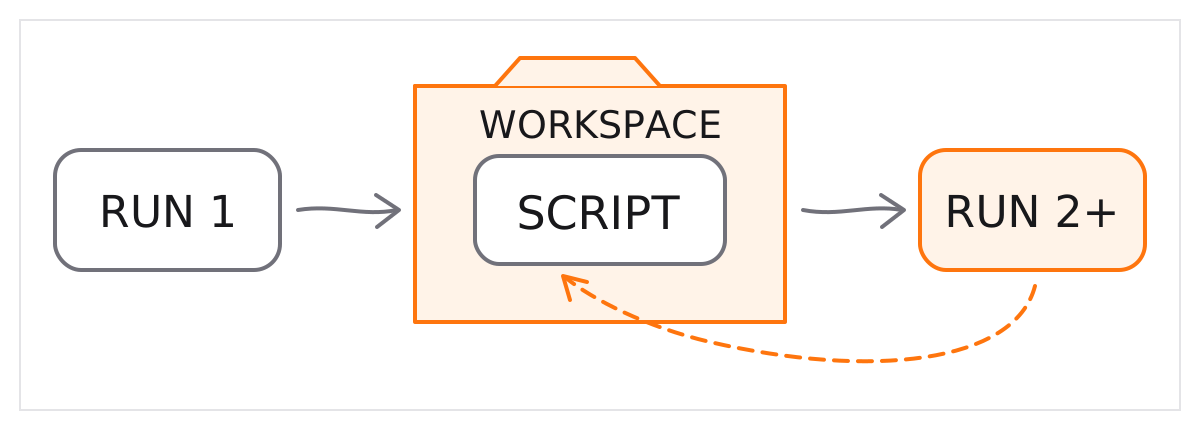
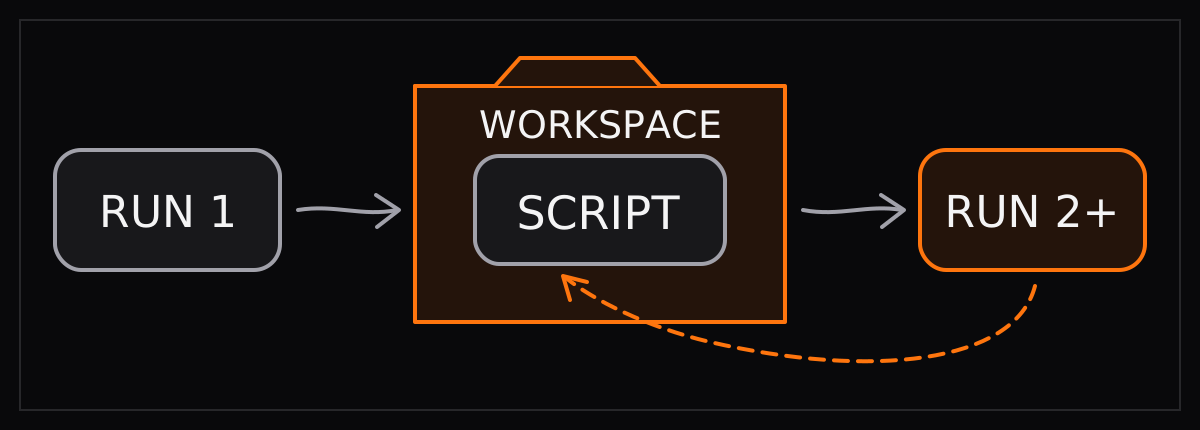 Create one workspace for the workflow, then use these prompts with the same
`workspace_id` / `workspaceId`. The [run code](https://docs.browser-use.com/cloud/agent/quickstart) does not
change.
## First run
```text
Get the top five Hacker News stories as JSON.
Then reproduce exactly what you did as helper functions or a script. Test it,
save it in this workspace, and add a README with instructions for using it again.
```
## Later runs
```text
Use the existing workspace script to get the top ten Hacker News stories.
Follow its README. Only fix and retest the script if it no longer works.
```
This is faster and cheaper for repeated workflows, but it still starts an agent
and uses tokens. The script is reusable and self-healing—not zero-LLM execution.
# Human in the loop
Source: https://docs.browser-use.com/cloud/agent/human-in-the-loop
Use a human checkpoint for approvals, authentication, payments, or review.
After a run stops, get its `live_view_url` from the `browser.ready` event:
```python Python
from browser_use_sdk.v4 import BrowserUse
client = BrowserUse()
run = client.runs.create(
"Open the login page and stop for human review"
)
run = client.runs.wait_for_completion(run.id)
events = client.runs.events(run.id, limit=100)
ready = next(
event for event in events.events
if event.type == "browser.ready"
)
print(ready.data["live_view_url"])
# After the human finishes:
next_run = client.runs.create(
"Continue from the current page",
session_id=run.session_id,
)
```
```typescript TypeScript
import { BrowserUse } from "browser-use-sdk/v4";
const client = new BrowserUse();
const run = await client.runs.create({
task: "Open the login page and stop for human review",
model: "grok-4.5",
});
await client.runs.waitForCompletion(run.id);
const events = await client.runs.events(run.id, {
limit: 100,
});
const ready = events.events.find(
(event) => event.type === "browser.ready",
);
console.log(ready?.data.live_view_url);
// After the human finishes:
const nextRun = await client.runs.create({
task: "Continue from the current page",
model: "grok-4.5",
sessionId: run.sessionId,
});
```
The same session preserves the conversation and workspace and reuses the live
browser while it is available. Treat live-view URLs as credentials.
# Observability
Source: https://docs.browser-use.com/cloud/agent/observability
Poll `runs.events()` with the previous cursor to receive only new events:
```python Python
import time
after = None
while True:
page = client.runs.events(run.id, after=after)
for event in page.events:
print(event.type, event.data)
after = page.next_after if page.next_after is not None else after
status = client.runs.status(run.id).status.value
if status in {"completed", "failed", "cancelled"}:
break
time.sleep(1)
```
```typescript TypeScript
let after: number | undefined;
while (true) {
const page = await client.runs.events(run.id, { after });
for (const event of page.events) {
console.log(event.type, event.data);
}
after = page.nextAfter ?? after;
const { status } = await client.runs.status(run.id);
if (["completed", "failed", "cancelled"].includes(status)) break;
await new Promise((resolve) => setTimeout(resolve, 1000));
}
```
Events cover run lifecycle, model calls, browser readiness, tool activity,
artifacts, and completion. See [Get run events](https://docs.browser-use.com/cloud/api-v4/runs/get-run-events)
for the complete response shape.
# Browser quickstart
Source: https://docs.browser-use.com/cloud/browser/quickstart
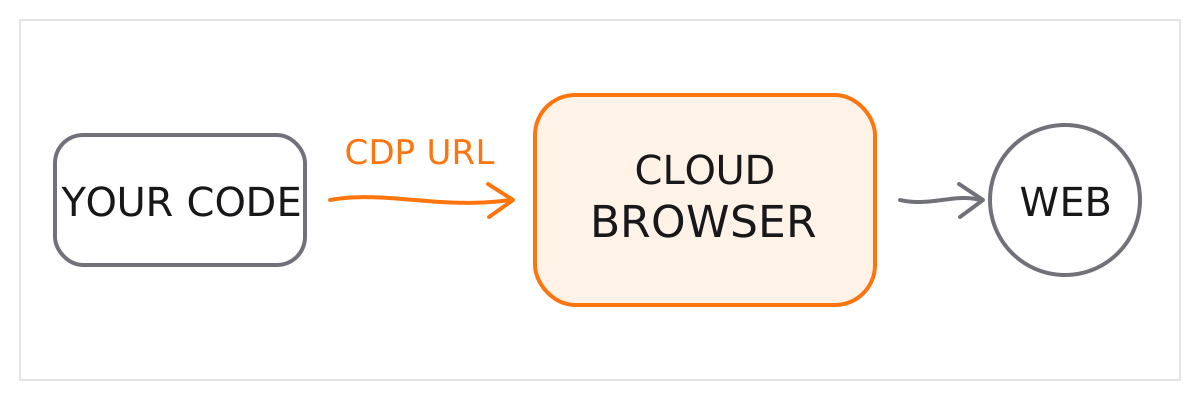
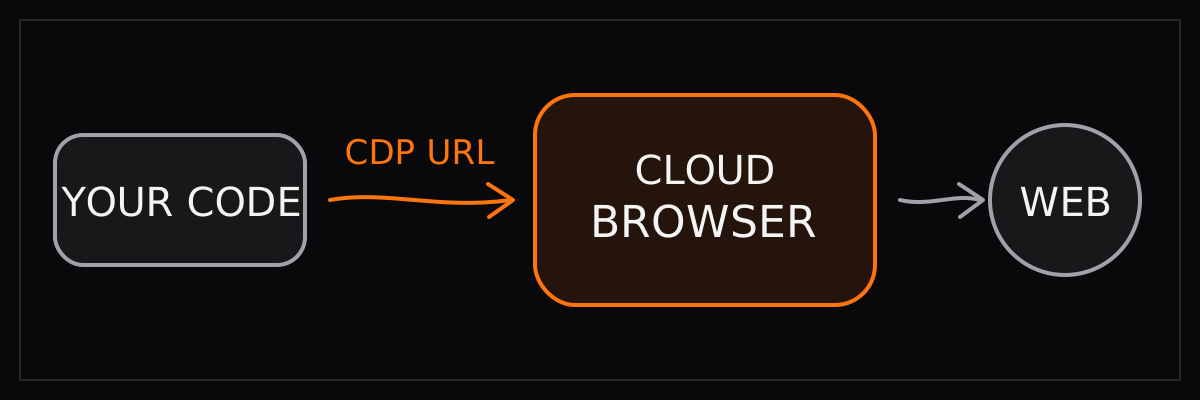
Every browser includes stealth, proxies, live preview, and recording. Its
**CDP URL** is a WebSocket endpoint for remotely controlling Chrome.
Create one workspace for the workflow, then use these prompts with the same
`workspace_id` / `workspaceId`. The [run code](https://docs.browser-use.com/cloud/agent/quickstart) does not
change.
## First run
```text
Get the top five Hacker News stories as JSON.
Then reproduce exactly what you did as helper functions or a script. Test it,
save it in this workspace, and add a README with instructions for using it again.
```
## Later runs
```text
Use the existing workspace script to get the top ten Hacker News stories.
Follow its README. Only fix and retest the script if it no longer works.
```
This is faster and cheaper for repeated workflows, but it still starts an agent
and uses tokens. The script is reusable and self-healing—not zero-LLM execution.
# Human in the loop
Source: https://docs.browser-use.com/cloud/agent/human-in-the-loop
Use a human checkpoint for approvals, authentication, payments, or review.
After a run stops, get its `live_view_url` from the `browser.ready` event:
```python Python
from browser_use_sdk.v4 import BrowserUse
client = BrowserUse()
run = client.runs.create(
"Open the login page and stop for human review"
)
run = client.runs.wait_for_completion(run.id)
events = client.runs.events(run.id, limit=100)
ready = next(
event for event in events.events
if event.type == "browser.ready"
)
print(ready.data["live_view_url"])
# After the human finishes:
next_run = client.runs.create(
"Continue from the current page",
session_id=run.session_id,
)
```
```typescript TypeScript
import { BrowserUse } from "browser-use-sdk/v4";
const client = new BrowserUse();
const run = await client.runs.create({
task: "Open the login page and stop for human review",
model: "grok-4.5",
});
await client.runs.waitForCompletion(run.id);
const events = await client.runs.events(run.id, {
limit: 100,
});
const ready = events.events.find(
(event) => event.type === "browser.ready",
);
console.log(ready?.data.live_view_url);
// After the human finishes:
const nextRun = await client.runs.create({
task: "Continue from the current page",
model: "grok-4.5",
sessionId: run.sessionId,
});
```
The same session preserves the conversation and workspace and reuses the live
browser while it is available. Treat live-view URLs as credentials.
# Observability
Source: https://docs.browser-use.com/cloud/agent/observability
Poll `runs.events()` with the previous cursor to receive only new events:
```python Python
import time
after = None
while True:
page = client.runs.events(run.id, after=after)
for event in page.events:
print(event.type, event.data)
after = page.next_after if page.next_after is not None else after
status = client.runs.status(run.id).status.value
if status in {"completed", "failed", "cancelled"}:
break
time.sleep(1)
```
```typescript TypeScript
let after: number | undefined;
while (true) {
const page = await client.runs.events(run.id, { after });
for (const event of page.events) {
console.log(event.type, event.data);
}
after = page.nextAfter ?? after;
const { status } = await client.runs.status(run.id);
if (["completed", "failed", "cancelled"].includes(status)) break;
await new Promise((resolve) => setTimeout(resolve, 1000));
}
```
Events cover run lifecycle, model calls, browser readiness, tool activity,
artifacts, and completion. See [Get run events](https://docs.browser-use.com/cloud/api-v4/runs/get-run-events)
for the complete response shape.
# Browser quickstart
Source: https://docs.browser-use.com/cloud/browser/quickstart
Every browser includes stealth, proxies, live preview, and recording. Its
**CDP URL** is a WebSocket endpoint for remotely controlling Chrome.
 Get an [API key](https://cloud.browser-use.com/settings?tab=api-keys&new=1) and
export it:
```bash
export BROWSER_USE_API_KEY=your_key
```
## Install the SDK
Skip this step if you use curl.
```bash Python
pip install browser-use-sdk
```
```bash TypeScript
npm install browser-use-sdk
```
## Launch a browser
```python Python
from browser_use_sdk.v3 import BrowserUse
client = BrowserUse()
browser = client.browsers.create(proxy_country_code="us")
print(browser.cdp_url)
# When finished:
client.browsers.stop(browser.id)
```
```typescript TypeScript
import { BrowserUse } from "browser-use-sdk/v3";
const client = new BrowserUse();
const browser = await client.browsers.create({ proxyCountryCode: "us" });
console.log(browser.cdpUrl);
// When finished:
await client.browsers.stop(browser.id);
```
```bash curl
browser=$(curl -sS https://api.browser-use.com/api/v4/browsers \
-H "X-Browser-Use-API-Key: $BROWSER_USE_API_KEY" \
-H "Content-Type: application/json" \
-d '{"proxyCountryCode":"us"}')
export BROWSER_SESSION_ID=$(echo "$browser" | jq -r .id)
export BROWSER_USE_CDP_URL=$(echo "$browser" | jq -r .cdpUrl)
echo "$BROWSER_USE_CDP_URL"
# When finished:
curl -X PATCH \
"https://api.browser-use.com/api/v4/browsers/$BROWSER_SESSION_ID" \
-H "X-Browser-Use-API-Key: $BROWSER_USE_API_KEY" \
-H "Content-Type: application/json" \
-d '{"action":"stop"}'
```
`browser.close()`, disconnecting CDP, or `client.close()` does not stop the
managed browser. Use `client.browsers.stop(browser.id)` or call
`PATCH /api/v4/browsers/{id}` with `{"action":"stop"}`.
[Connect over CDP](https://docs.browser-use.com/cloud/browser/playwright-puppeteer-selenium)
Use the CDP URL with Playwright or Puppeteer.
[Browser settings](https://docs.browser-use.com/cloud/api-v4/browsers/create-browser-session)
Configure proxies, screen size, recording, and timeout.
# Stealth
Source: https://docs.browser-use.com/cloud/browser/stealth
See [how we perform in the hardest stealth benchmark](https://browser-use.com/posts/stealth-benchmark).
## What's included
Every cloud browser session runs in a hardened Chromium fork with stealth enabled by default — no configuration needed.
- **Anti-detect browser fingerprinting** — Canvas, WebGL, fonts, navigator, and other browser fingerprints are randomized per session to appear as a real user. Passes CreepJS, BrowserLeaks, and other fingerprint detectors.
- **Ad and cookie banner blocking** — Banners are dismissed automatically so the agent sees clean pages and executes faster.
- **Cloudflare / anti-bot bypass** — Works on sites protected by Cloudflare, PerimeterX, and other bot detection services.
## Residential proxies
Residential proxies are enabled by default across 195+ countries. This makes browser sessions appear as real users from the target geography. See [Proxies](https://docs.browser-use.com/cloud/browser/proxies) for details on geo-targeting and custom proxy configuration.
# Proxies
Source: https://docs.browser-use.com/cloud/browser/proxies
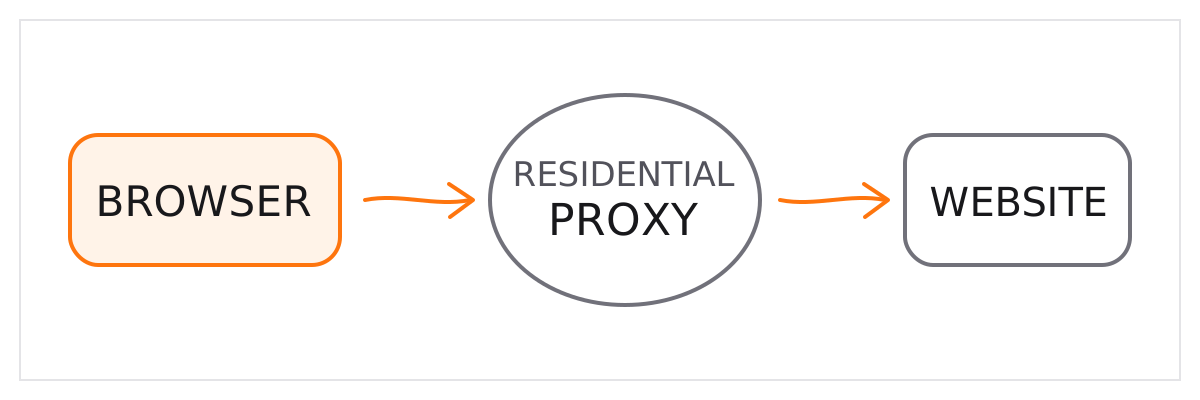
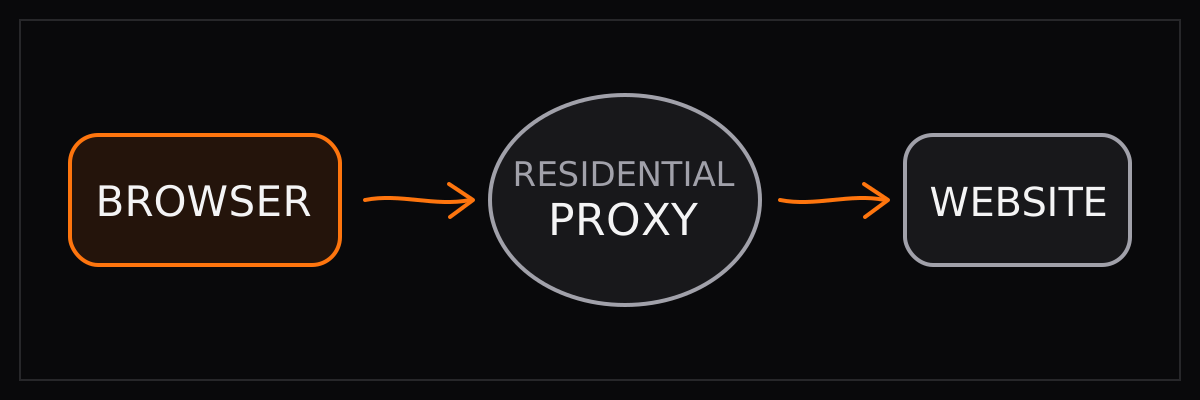
A US residential proxy is enabled by default. The browser's traffic passes
through that residential IP before reaching the website, so the website sees
the proxy's location—not your server's.
Get an [API key](https://cloud.browser-use.com/settings?tab=api-keys&new=1) and
export it:
```bash
export BROWSER_USE_API_KEY=your_key
```
## Install the SDK
Skip this step if you use curl.
```bash Python
pip install browser-use-sdk
```
```bash TypeScript
npm install browser-use-sdk
```
## Launch a browser
```python Python
from browser_use_sdk.v3 import BrowserUse
client = BrowserUse()
browser = client.browsers.create(proxy_country_code="us")
print(browser.cdp_url)
# When finished:
client.browsers.stop(browser.id)
```
```typescript TypeScript
import { BrowserUse } from "browser-use-sdk/v3";
const client = new BrowserUse();
const browser = await client.browsers.create({ proxyCountryCode: "us" });
console.log(browser.cdpUrl);
// When finished:
await client.browsers.stop(browser.id);
```
```bash curl
browser=$(curl -sS https://api.browser-use.com/api/v4/browsers \
-H "X-Browser-Use-API-Key: $BROWSER_USE_API_KEY" \
-H "Content-Type: application/json" \
-d '{"proxyCountryCode":"us"}')
export BROWSER_SESSION_ID=$(echo "$browser" | jq -r .id)
export BROWSER_USE_CDP_URL=$(echo "$browser" | jq -r .cdpUrl)
echo "$BROWSER_USE_CDP_URL"
# When finished:
curl -X PATCH \
"https://api.browser-use.com/api/v4/browsers/$BROWSER_SESSION_ID" \
-H "X-Browser-Use-API-Key: $BROWSER_USE_API_KEY" \
-H "Content-Type: application/json" \
-d '{"action":"stop"}'
```
`browser.close()`, disconnecting CDP, or `client.close()` does not stop the
managed browser. Use `client.browsers.stop(browser.id)` or call
`PATCH /api/v4/browsers/{id}` with `{"action":"stop"}`.
[Connect over CDP](https://docs.browser-use.com/cloud/browser/playwright-puppeteer-selenium)
Use the CDP URL with Playwright or Puppeteer.
[Browser settings](https://docs.browser-use.com/cloud/api-v4/browsers/create-browser-session)
Configure proxies, screen size, recording, and timeout.
# Stealth
Source: https://docs.browser-use.com/cloud/browser/stealth
See [how we perform in the hardest stealth benchmark](https://browser-use.com/posts/stealth-benchmark).
## What's included
Every cloud browser session runs in a hardened Chromium fork with stealth enabled by default — no configuration needed.
- **Anti-detect browser fingerprinting** — Canvas, WebGL, fonts, navigator, and other browser fingerprints are randomized per session to appear as a real user. Passes CreepJS, BrowserLeaks, and other fingerprint detectors.
- **Ad and cookie banner blocking** — Banners are dismissed automatically so the agent sees clean pages and executes faster.
- **Cloudflare / anti-bot bypass** — Works on sites protected by Cloudflare, PerimeterX, and other bot detection services.
## Residential proxies
Residential proxies are enabled by default across 195+ countries. This makes browser sessions appear as real users from the target geography. See [Proxies](https://docs.browser-use.com/cloud/browser/proxies) for details on geo-targeting and custom proxy configuration.
# Proxies
Source: https://docs.browser-use.com/cloud/browser/proxies
A US residential proxy is enabled by default. The browser's traffic passes
through that residential IP before reaching the website, so the website sees
the proxy's location—not your server's.
 Set `browser_settings` / `browserSettings` when you create a V4 run to choose
another country:
The current TypeScript SDK type requires `proxyCountryCode` whenever
`browserSettings` is present. Use `"us"` to keep the default, or `null` to
disable the managed proxy.
```python Python
from browser_use_sdk.v4 import BrowserUse
client = BrowserUse()
run = client.runs.create(
"Get the iPhone 16 price on amazon.de",
browser_settings={"proxyCountryCode": "de"},
)
```
```typescript TypeScript
import { BrowserUse } from "browser-use-sdk/v4";
const client = new BrowserUse();
const run = await client.runs.create({
task: "Get the iPhone 16 price on amazon.de",
model: "grok-4.5",
browserSettings: { proxyCountryCode: "de" },
});
```
```bash curl
curl https://api.browser-use.com/api/v4/runs \
-H "X-Browser-Use-API-Key: $BROWSER_USE_API_KEY" \
-H "Content-Type: application/json" \
-d '{"task":"Get the iPhone 16 price on amazon.de",
"browserSettings":{"proxyCountryCode":"de"}}'
```
## Disable proxies
Pass `null` for QA or internal sites that do not need a residential proxy:
```python Python
run = client.runs.create(
"Test my staging site",
browser_settings={"proxyCountryCode": None},
)
```
```typescript TypeScript
const run = await client.runs.create({
task: "Test my staging site",
model: "grok-4.5",
browserSettings: { proxyCountryCode: null },
});
```
## Custom proxy
Custom HTTP and SOCKS5 proxies are available on paid plans:
```python Python
run = client.runs.create(
"Check the account dashboard",
browser_settings={
"customProxy": {
"host": "proxy.example.com",
"port": 8080,
"username": "user",
"password": "pass",
"ignoreCertErrors": False,
}
},
)
```
```typescript TypeScript
const run = await client.runs.create({
task: "Check the account dashboard",
model: "grok-4.5",
browserSettings: {
proxyCountryCode: "us",
customProxy: {
host: "proxy.example.com",
port: 8080,
username: "user",
password: "pass",
ignoreCertErrors: false,
},
},
});
```
A custom proxy overrides `proxyCountryCode` and must be passed again when a
follow-up provisions a new browser. See the [Create run
reference](https://docs.browser-use.com/cloud/api-v4/runs/create-run) for the complete settings object.
# Live preview & recording
Source: https://docs.browser-use.com/cloud/browser/live-preview
The `browser.ready` event contains the live browser URL:
```python Python
from browser_use_sdk.v4 import BrowserUse
client = BrowserUse()
run = client.runs.create("Find the top Hacker News story")
run = client.runs.wait_for_completion(run.id)
events = client.runs.events(run.id, limit=100)
ready = next(
event for event in events.events
if event.type == "browser.ready"
)
print(ready.data["live_view_url"])
```
```typescript TypeScript
import { BrowserUse } from "browser-use-sdk/v4";
const client = new BrowserUse();
const run = await client.runs.create({
task: "Find the top Hacker News story",
model: "grok-4.5",
});
await client.runs.waitForCompletion(run.id);
const events = await client.runs.events(run.id, {
limit: 100,
});
const ready = events.events.find(
(event) => event.type === "browser.ready",
);
console.log(ready?.data.live_view_url);
```
Poll [run events](https://docs.browser-use.com/cloud/agent/observability) if you need the URL as soon as
the browser starts.
## Embed the live browser
```html
```
The URL is hosted on `live.browser-use.com`. Add that origin to your
Content Security Policy's `frame-src` directive when needed. Treat the URL as
a credential: anyone with it can interact with the active browser.
## Recording
Enable recording when the run creates its browser:
```python Python
run = client.runs.create(
"Test the checkout flow",
browser_settings={"record": True},
)
```
```typescript TypeScript
const run = await client.runs.create({
task: "Test the checkout flow",
model: "grok-4.5",
browserSettings: { proxyCountryCode: "us", record: true },
});
```
```bash curl
curl https://api.browser-use.com/api/v4/runs \
-H "X-Browser-Use-API-Key: $BROWSER_USE_API_KEY" \
-H "Content-Type: application/json" \
-d '{"task":"Test checkout","browserSettings":{"record":true}}'
```
The MP4 becomes available in the Dashboard after the browser stops. API runs
default to recording off, and Zero Data Retention projects never record.
# Playwright, Puppeteer, Selenium
Source: https://docs.browser-use.com/cloud/browser/playwright-puppeteer-selenium
Every browser runs in a [hardened Chromium fork](https://docs.browser-use.com/cloud/browser/stealth) with
stealth, anti-fingerprinting, and [residential
proxies](https://docs.browser-use.com/cloud/browser/proxies) enabled by default.
This page is for direct browser control. To give an AI agent a goal instead,
[create an API V4 run](https://docs.browser-use.com/cloud/agent/quickstart).
## 1. Create a browser
```bash
session=$(curl -sS https://api.browser-use.com/api/v4/browsers \
-H "X-Browser-Use-API-Key: $BROWSER_USE_API_KEY" \
-H "Content-Type: application/json" \
-d '{"proxyCountryCode":"us"}')
export BROWSER_SESSION_ID=$(echo "$session" | jq -r .id)
export BROWSER_USE_CDP_URL=$(echo "$session" | jq -r .cdpUrl)
```
## 2. Connect over CDP
### Playwright
```python Python
import os
from playwright.sync_api import sync_playwright
with sync_playwright() as p:
browser = p.chromium.connect_over_cdp(os.environ["BROWSER_USE_CDP_URL"])
page = browser.contexts[0].pages[0]
page.goto("https://example.com")
print(page.title())
```
```typescript TypeScript
import { chromium } from "playwright";
const browser = await chromium.connectOverCDP(
process.env.BROWSER_USE_CDP_URL!,
);
const page = browser.contexts()[0].pages()[0];
await page.goto("https://example.com");
console.log(await page.title());
```
### Puppeteer
```typescript
import puppeteer from "puppeteer-core";
const browser = await puppeteer.connect({
browserWSEndpoint: process.env.BROWSER_USE_CDP_URL!,
});
const [page] = await browser.pages();
await page.goto("https://example.com");
console.log(await page.title());
```
### Selenium
Selenium's `debugger_address` only supports local `host:port` connections.
Use Playwright or Puppeteer for remote CDP over WebSocket.
## 3. Stop the browser
```bash
curl -X PATCH \
"https://api.browser-use.com/api/v4/browsers/$BROWSER_SESSION_ID" \
-H "X-Browser-Use-API-Key: $BROWSER_USE_API_KEY" \
-H "Content-Type: application/json" \
-d '{"action":"stop"}'
```
`browser.close()` and disconnecting CDP do not stop the managed browser.
Call `PATCH /api/v4/browsers/{id}` with `{"action":"stop"}`.
See [Create browser session](https://docs.browser-use.com/cloud/api-v4/browsers/create-browser-session) and
[Update browser session](https://docs.browser-use.com/cloud/api-v4/browsers/update-browser-session) for
every browser setting and response field.
# Profiles
Source: https://docs.browser-use.com/cloud/guides/authentication
A profile persists cookies, local storage, and login state across browsers.
Log in once, save the profile, then reuse it to start future browsers already
logged in.
Set `browser_settings` / `browserSettings` when you create a V4 run to choose
another country:
The current TypeScript SDK type requires `proxyCountryCode` whenever
`browserSettings` is present. Use `"us"` to keep the default, or `null` to
disable the managed proxy.
```python Python
from browser_use_sdk.v4 import BrowserUse
client = BrowserUse()
run = client.runs.create(
"Get the iPhone 16 price on amazon.de",
browser_settings={"proxyCountryCode": "de"},
)
```
```typescript TypeScript
import { BrowserUse } from "browser-use-sdk/v4";
const client = new BrowserUse();
const run = await client.runs.create({
task: "Get the iPhone 16 price on amazon.de",
model: "grok-4.5",
browserSettings: { proxyCountryCode: "de" },
});
```
```bash curl
curl https://api.browser-use.com/api/v4/runs \
-H "X-Browser-Use-API-Key: $BROWSER_USE_API_KEY" \
-H "Content-Type: application/json" \
-d '{"task":"Get the iPhone 16 price on amazon.de",
"browserSettings":{"proxyCountryCode":"de"}}'
```
## Disable proxies
Pass `null` for QA or internal sites that do not need a residential proxy:
```python Python
run = client.runs.create(
"Test my staging site",
browser_settings={"proxyCountryCode": None},
)
```
```typescript TypeScript
const run = await client.runs.create({
task: "Test my staging site",
model: "grok-4.5",
browserSettings: { proxyCountryCode: null },
});
```
## Custom proxy
Custom HTTP and SOCKS5 proxies are available on paid plans:
```python Python
run = client.runs.create(
"Check the account dashboard",
browser_settings={
"customProxy": {
"host": "proxy.example.com",
"port": 8080,
"username": "user",
"password": "pass",
"ignoreCertErrors": False,
}
},
)
```
```typescript TypeScript
const run = await client.runs.create({
task: "Check the account dashboard",
model: "grok-4.5",
browserSettings: {
proxyCountryCode: "us",
customProxy: {
host: "proxy.example.com",
port: 8080,
username: "user",
password: "pass",
ignoreCertErrors: false,
},
},
});
```
A custom proxy overrides `proxyCountryCode` and must be passed again when a
follow-up provisions a new browser. See the [Create run
reference](https://docs.browser-use.com/cloud/api-v4/runs/create-run) for the complete settings object.
# Live preview & recording
Source: https://docs.browser-use.com/cloud/browser/live-preview
The `browser.ready` event contains the live browser URL:
```python Python
from browser_use_sdk.v4 import BrowserUse
client = BrowserUse()
run = client.runs.create("Find the top Hacker News story")
run = client.runs.wait_for_completion(run.id)
events = client.runs.events(run.id, limit=100)
ready = next(
event for event in events.events
if event.type == "browser.ready"
)
print(ready.data["live_view_url"])
```
```typescript TypeScript
import { BrowserUse } from "browser-use-sdk/v4";
const client = new BrowserUse();
const run = await client.runs.create({
task: "Find the top Hacker News story",
model: "grok-4.5",
});
await client.runs.waitForCompletion(run.id);
const events = await client.runs.events(run.id, {
limit: 100,
});
const ready = events.events.find(
(event) => event.type === "browser.ready",
);
console.log(ready?.data.live_view_url);
```
Poll [run events](https://docs.browser-use.com/cloud/agent/observability) if you need the URL as soon as
the browser starts.
## Embed the live browser
```html
```
The URL is hosted on `live.browser-use.com`. Add that origin to your
Content Security Policy's `frame-src` directive when needed. Treat the URL as
a credential: anyone with it can interact with the active browser.
## Recording
Enable recording when the run creates its browser:
```python Python
run = client.runs.create(
"Test the checkout flow",
browser_settings={"record": True},
)
```
```typescript TypeScript
const run = await client.runs.create({
task: "Test the checkout flow",
model: "grok-4.5",
browserSettings: { proxyCountryCode: "us", record: true },
});
```
```bash curl
curl https://api.browser-use.com/api/v4/runs \
-H "X-Browser-Use-API-Key: $BROWSER_USE_API_KEY" \
-H "Content-Type: application/json" \
-d '{"task":"Test checkout","browserSettings":{"record":true}}'
```
The MP4 becomes available in the Dashboard after the browser stops. API runs
default to recording off, and Zero Data Retention projects never record.
# Playwright, Puppeteer, Selenium
Source: https://docs.browser-use.com/cloud/browser/playwright-puppeteer-selenium
Every browser runs in a [hardened Chromium fork](https://docs.browser-use.com/cloud/browser/stealth) with
stealth, anti-fingerprinting, and [residential
proxies](https://docs.browser-use.com/cloud/browser/proxies) enabled by default.
This page is for direct browser control. To give an AI agent a goal instead,
[create an API V4 run](https://docs.browser-use.com/cloud/agent/quickstart).
## 1. Create a browser
```bash
session=$(curl -sS https://api.browser-use.com/api/v4/browsers \
-H "X-Browser-Use-API-Key: $BROWSER_USE_API_KEY" \
-H "Content-Type: application/json" \
-d '{"proxyCountryCode":"us"}')
export BROWSER_SESSION_ID=$(echo "$session" | jq -r .id)
export BROWSER_USE_CDP_URL=$(echo "$session" | jq -r .cdpUrl)
```
## 2. Connect over CDP
### Playwright
```python Python
import os
from playwright.sync_api import sync_playwright
with sync_playwright() as p:
browser = p.chromium.connect_over_cdp(os.environ["BROWSER_USE_CDP_URL"])
page = browser.contexts[0].pages[0]
page.goto("https://example.com")
print(page.title())
```
```typescript TypeScript
import { chromium } from "playwright";
const browser = await chromium.connectOverCDP(
process.env.BROWSER_USE_CDP_URL!,
);
const page = browser.contexts()[0].pages()[0];
await page.goto("https://example.com");
console.log(await page.title());
```
### Puppeteer
```typescript
import puppeteer from "puppeteer-core";
const browser = await puppeteer.connect({
browserWSEndpoint: process.env.BROWSER_USE_CDP_URL!,
});
const [page] = await browser.pages();
await page.goto("https://example.com");
console.log(await page.title());
```
### Selenium
Selenium's `debugger_address` only supports local `host:port` connections.
Use Playwright or Puppeteer for remote CDP over WebSocket.
## 3. Stop the browser
```bash
curl -X PATCH \
"https://api.browser-use.com/api/v4/browsers/$BROWSER_SESSION_ID" \
-H "X-Browser-Use-API-Key: $BROWSER_USE_API_KEY" \
-H "Content-Type: application/json" \
-d '{"action":"stop"}'
```
`browser.close()` and disconnecting CDP do not stop the managed browser.
Call `PATCH /api/v4/browsers/{id}` with `{"action":"stop"}`.
See [Create browser session](https://docs.browser-use.com/cloud/api-v4/browsers/create-browser-session) and
[Update browser session](https://docs.browser-use.com/cloud/api-v4/browsers/update-browser-session) for
every browser setting and response field.
# Profiles
Source: https://docs.browser-use.com/cloud/guides/authentication
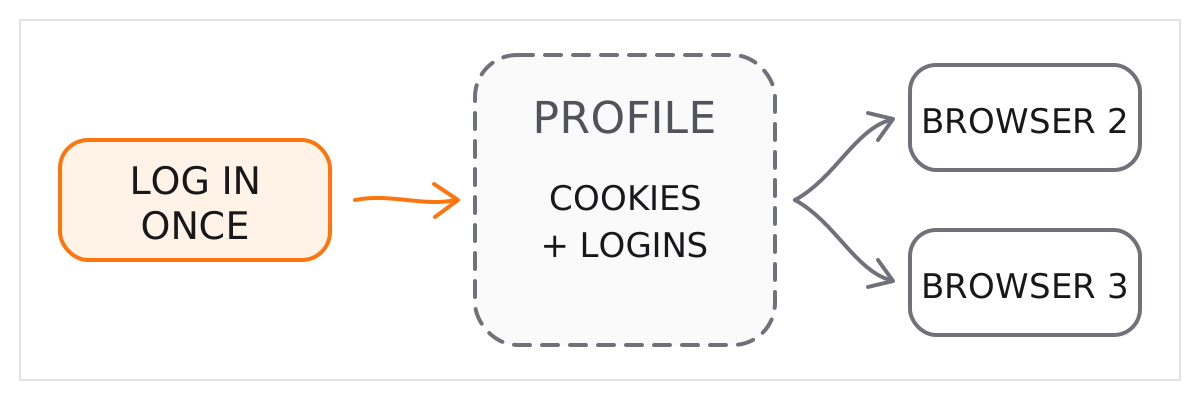
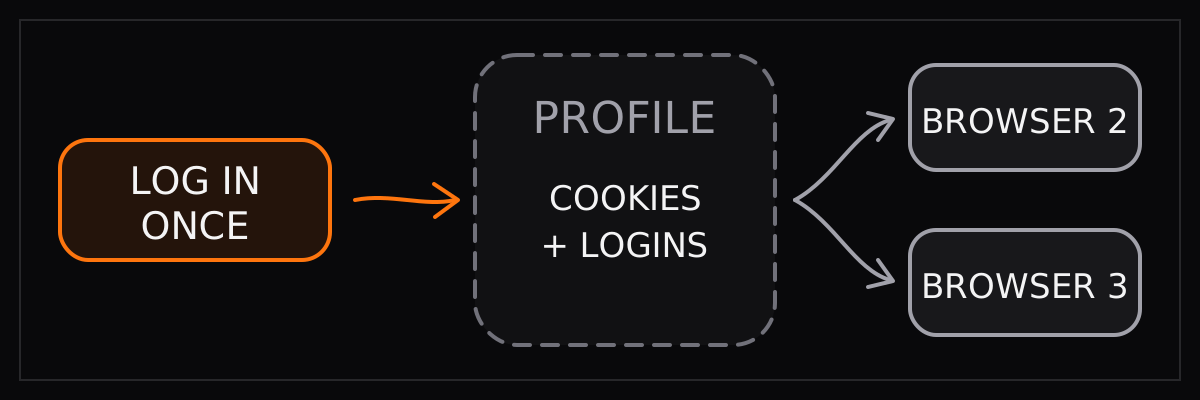
A profile persists cookies, local storage, and login state across browsers.
Log in once, save the profile, then reuse it to start future browsers already
logged in.
 Create or select one under [Dashboard → Profiles](https://cloud.browser-use.com/settings?tab=profiles),
then pass its ID in V4 browser settings:
```python Python
from browser_use_sdk.v4 import BrowserUse
client = BrowserUse()
run = client.runs.create(
"Open my account dashboard and summarize it",
browser_settings={"profileId": "YOUR_PROFILE_ID"},
)
result = client.runs.wait_for_completion(run.id)
print(result.result)
```
```typescript TypeScript
import { BrowserUse } from "browser-use-sdk/v4";
const client = new BrowserUse();
const run = await client.runs.create({
task: "Open my account dashboard and summarize it",
model: "grok-4.5",
browserSettings: {
profileId: "YOUR_PROFILE_ID",
proxyCountryCode: "us",
},
});
const result = await client.runs.waitForCompletion(run.id);
console.log(result.result);
```
```bash curl
curl https://api.browser-use.com/api/v4/runs \
-H "X-Browser-Use-API-Key: $BROWSER_USE_API_KEY" \
-H "Content-Type: application/json" \
-d '{"task":"Summarize my account dashboard",
"browserSettings":{"profileId":"YOUR_PROFILE_ID"}}'
```
Use one profile per end user. Follow-ups in the same [session](https://docs.browser-use.com/cloud/agent/sessions)
reuse the live browser; later sessions can load the same profile again.
For the fastest setup, [sync an existing local login](https://docs.browser-use.com/cloud/guides/profile-sync).
# Sync local and cloud cookies
Source: https://docs.browser-use.com/cloud/guides/profile-sync
Run the profile sync helper:
```bash
export BROWSER_USE_API_KEY=your_key
curl -fsSL https://browser-use.com/profile.sh | sh
```
Choose the accounts to sync, then use the returned profile ID:
```python Python
from browser_use_sdk.v4 import BrowserUse
client = BrowserUse()
run = client.runs.create(
"Check my LinkedIn messages",
browser_settings={"profileId": "YOUR_PROFILE_ID"},
)
```
```typescript TypeScript
import { BrowserUse } from "browser-use-sdk/v4";
const client = new BrowserUse();
const run = await client.runs.create({
task: "Check my LinkedIn messages",
model: "grok-4.5",
browserSettings: {
profileId: "YOUR_PROFILE_ID",
proxyCountryCode: "us",
},
});
```
The profile supplies cookies and local storage without putting credentials in
the prompt. Re-sync when the site's login expires.
# 2FA
Source: https://docs.browser-use.com/cloud/guides/2fa
The most reliable options are a saved profile or a human checkpoint.
## Reuse a logged-in profile
[Sync your local login](https://docs.browser-use.com/cloud/guides/profile-sync), then load that profile in
the run:
```python Python
run = client.runs.create(
"Download my latest invoice",
browser_settings={"profileId": "YOUR_PROFILE_ID"},
)
```
```typescript TypeScript
const run = await client.runs.create({
task: "Download my latest invoice",
model: "grok-4.5",
browserSettings: {
profileId: "YOUR_PROFILE_ID",
proxyCountryCode: "us",
},
});
```
This avoids another 2FA challenge while the site's cookies remain valid.
## Let a human take over
Ask the first run to stop at the 2FA screen, get its `live_view_url` from the
[`browser.ready` event](https://docs.browser-use.com/cloud/agent/human-in-the-loop), and have the user enter
the code. Then continue with the same session:
```python Python
first = client.runs.create(
"Open the login page and stop at the 2FA prompt",
)
client.runs.wait_for_completion(first.id)
next_run = client.runs.create(
"Continue after login and download the invoice",
session_id=first.session_id,
)
```
```typescript TypeScript
const first = await client.runs.create({
task: "Open the login page and stop at the 2FA prompt",
model: "grok-4.5",
});
await client.runs.waitForCompletion(first.id);
const nextRun = await client.runs.create({
task: "Continue after login and download the invoice",
model: "grok-4.5",
sessionId: first.sessionId,
});
```
See [Human in the loop](https://docs.browser-use.com/cloud/agent/human-in-the-loop) for retrieving and
embedding the live browser URL. Never put passwords or TOTP secrets directly
in a prompt.
# Claude Code
Source: https://docs.browser-use.com/cloud/tutorials/integrations/claude-code
[Claude Code](https://docs.anthropic.com/en/docs/claude-code/overview) is Anthropic's agentic coding tool that runs in the terminal. Add Browser Use and it gets full cloud browser automation — anti-detect profiles, CAPTCHA solving, residential proxies in 195+ countries, persistent profiles, and stealth browsing.
## Setup
**1. Install the CLI**
```bash
uv tool install browser-use
```
**2. Verify the installation**
```bash
browser-use doctor
```
**3. Register the skill**
Register the Browser Use skill with the installed CLI:
```bash
browser-use skill install
```
**4. Authenticate for cloud browsers**
Sign up at [cloud.browser-use.com](https://cloud.browser-use.com), then authenticate:
```bash
browser-use auth login
```
Or let Claude Code provision a free API key itself — see [Agent Self-Registration](#agent-self-registration) below.
**5. Use it**
Claude Code uses its bash tool to run CLI commands directly:
```
> Use browser-use to open github.com/trending and summarize the top repos
```
For the complete CLI reference and Python execution examples, see the [Browser Use CLI docs](https://docs.browser-use.com/open-source/browser-use-cli).
## Agent Self-Registration
Claude Code can provision its own Browser Use API key autonomously — no human interaction needed. The free tier includes unlimited browser hours, free proxies in 195+ countries, persistent browser profiles, CAPTCHA solving, and stealth browsing at zero cost.
Install the Browser Use CLI and skill:
```bash
uv tool install browser-use
browser-use skill install
```
Claude Code can follow the [REST flow](https://docs.browser-use.com/cloud/agent-signup#rest-flow) to request and verify a challenge, then put the returned key in its shell environment:
```bash
export BROWSER_USE_API_KEY=bu_...
browser-use auth status
```
### Claim the account (optional)
If the human wants to see the account in the dashboard later, use the [claim endpoint](https://docs.browser-use.com/cloud/agent-signup#claim-the-account). The returned claim URL is valid for 1 hour.
# Claude Managed Agents
Source: https://docs.browser-use.com/cloud/tutorials/integrations/claude-managed-agents
[Claude Managed Agents](https://platform.claude.com/docs/en/managed-agents) run on Anthropic's hosted platform. Install the `browser-use` CLI in the agent's environment and it can drive a stealth cloud browser — with proxies, CAPTCHA solving, live view, and recording. Your API key stays in a credential vault; the model never sees it.
The sandbox can't run a local browser, so the agent starts a named Browser Use Cloud browser and drives it with `browser-use <<'PY'` Python snippets.
## 1. Create an environment
Pre-install the CLI so it's ready at session start (no runtime install).
```yaml
name: browser-env
config:
type: cloud
packages:
pip:
- browser-use
networking:
type: limited
allowed_hosts: ["*.browser-use.com"]
allow_package_managers: true
```
## 2. Create a credential vault
Store your key as an environment variable so the CLI reads it and the model never does. Get one at [cloud.browser-use.com/settings](https://cloud.browser-use.com/settings?tab=api-keys&new=1).
| Field | Value |
| ----- | --------------------- |
| Type | Environment variable |
| Name | `BROWSER_USE_API_KEY` |
| Value | `bu_...` |
## 3. Create the agent
Tell it to use the CLI in cloud mode.
```yaml
name: browser agent
model:
id: claude-opus-4-8
description: Drives a stealth cloud browser with the Browser Use CLI.
system: |
You are a browser agent. Use the `browser-use` CLI to complete web tasks.
Never launch a local browser in this sandbox. Start a named cloud browser:
browser-use <<'PY'
start_remote_daemon("managed")
PY
Then run browser work through the same name:
BU_NAME=managed browser-use <<'PY'
new_tab("https://example.com")
print(page_info())
PY
Your BROWSER_USE_API_KEY is in the environment; never print it.
tools:
- type: agent_toolset_20260401 # shell access so the agent can run the CLI
default_config:
enabled: true
permission_policy:
type: always_allow
```
## 4. Start a session and send a task
The Console only observes; kick the agent off with a `user.message` event.
```bash
curl -sS "https://api.anthropic.com/v1/sessions/$SESSION_ID/events?beta=true" \
-H "x-api-key: $ANTHROPIC_API_KEY" \
-H "anthropic-version: 2023-06-01" \
-H "anthropic-beta: managed-agents-2026-04-01" \
-H "content-type: application/json" \
-d '{"events":[{"type":"user.message","content":[{"type":"text",
"text":"Get the top 5 Hacker News stories with their links."}]}]}'
```
## 5. Watch it run
The agent starts a named cloud browser, runs Python helper snippets through `browser-use`, then returns the result. The session shows up in [cloud.browser-use.com](https://cloud.browser-use.com) → **Remote Browsers** with a **Live View** and an **mp4 recording**.
Always use a cloud browser — the Managed Agents sandbox has no GUI, so a local
browser won't start. Cloud mode also gives you stealth, residential proxies,
live view, and recording.
# OpenClaw
Source: https://docs.browser-use.com/cloud/tutorials/integrations/openclaw
[OpenClaw](https://openclaw.ai) is a self-hosted gateway that connects chat apps like WhatsApp, Telegram, and Discord to AI coding agents. Add Browser Use and those agents get full browser automation — anti-detect profiles, CAPTCHA solving, residential proxies in 195+ countries, and stealth browsing out of the box.
Two ways to set it up: connect a Browser Use cloud browser to OpenClaw's native browser tool via CDP, or install the Browser Use CLI as a skill.
## Option 1: Cloud Browser via CDP
OpenClaw has a built-in browser tool with its own CLI commands (`openclaw browser`). By default, it controls a local Chromium instance. You can point it at a Browser Use cloud browser instead by configuring a remote CDP profile.
Browser Use exposes a WebSocket CDP URL. OpenClaw connects to it like any remote browser — no SDK or extra dependencies needed.
### Setup
**1. Get your API key**
Sign up at [cloud.browser-use.com](https://cloud.browser-use.com) and copy your API key from [Settings → API Keys](https://cloud.browser-use.com/settings?tab=api-keys&new=1).
**2. Add a Browser Use profile**
Open `~/.openclaw/openclaw.json` and add a `browser-use` profile:
```json5
{
browser: {
enabled: true,
defaultProfile: "browser-use",
remoteCdpTimeoutMs: 3000,
remoteCdpHandshakeTimeoutMs: 5000,
profiles: {
"browser-use": {
cdpUrl: "wss://connect.browser-use.com?apiKey=&proxyCountryCode=us",
color: "#ff750e",
},
},
},
}
```
Replace `` with your actual key. All Browser Use session parameters can be passed as query params in the `cdpUrl`:
- `timeout` — session duration in minutes (max 240)
- `profileId` — load a saved browser profile with persistent cookies and localStorage
- `proxyCountryCode` — route traffic through a specific country (e.g. `us`, `de`, `jp`)
**3. Use it**
OpenClaw's browser commands now run against a Browser Use cloud browser:
```bash
openclaw browser --browser-profile browser-use open https://example.com
openclaw browser --browser-profile browser-use snapshot
openclaw browser --browser-profile browser-use screenshot
```
If you set `defaultProfile` to `"browser-use"` in the config (as shown above), you can drop the `--browser-profile` flag:
```bash
openclaw browser open https://example.com
openclaw browser snapshot
openclaw browser screenshot
```
## Option 2: Browser Use CLI
The Browser Use CLI is a standalone tool that gives any OpenClaw agent browser automation through a SKILL.md file. The agent reads the skill and learns to use the CLI commands directly. It's available on [skills.sh](https://skills.sh/browser-use/browser-use/browser-use) and [ClawHub](https://clawhub.ai/ShawnPana/browser-use).
### Setup
**1. Install the CLI**
```bash
uv tool install browser-use
```
**2. Verify the installation**
```bash
browser-use doctor
```
**3. Set up the agent**
Paste this setup prompt into your OpenClaw agent:
```text
Install or upgrade browser-use with `uv tool install --python 3.12 --upgrade --force 'browser-use @ git+https://github.com/browser-use/browser-use.git'`, run `browser-use skill install`, and connect it to my browser. Follow https://github.com/browser-use/browser-use if setup or connection fails.
```
Once the skill is loaded, OpenClaw agents can use the `browser-use` CLI to drive pages through Browser Harness and Python helpers.
For the complete CLI reference, see the [Browser Use CLI docs](https://docs.browser-use.com/open-source/browser-use-cli).
# Hermes Agent
Source: https://docs.browser-use.com/cloud/tutorials/integrations/hermes-agent
[Hermes Agent](https://github.com/nousresearch/hermes-agent) is an open-source, self-improving AI agent by Nous Research. It has built-in browser automation tools that work with local Chromium out of the box. Add Browser Use and those tools run on cloud browsers with anti-detect profiles, residential proxies in 195+ countries, and stealth browsing.
Two ways to set it up: configure Browser Use as Hermes's cloud browser backend, or install the Browser Use CLI and let Hermes drive it directly.
## Option 1: Cloud Browser Backend
Hermes has built-in browser tools (`browser_navigate`, `browser_click`, `browser_snapshot`, etc.) that default to local Chromium. Point them at Browser Use cloud browsers instead — no extra dependencies, same Hermes experience.
### Setup
**1. Get your API key**
Sign up at [cloud.browser-use.com](https://cloud.browser-use.com) and copy your API key from [Settings → API Keys](https://cloud.browser-use.com/settings?tab=api-keys&new=1).
Or let the agent provision one itself — see [Agent Self-Registration](#agent-self-registration) below.
**2. Configure Hermes**
Run the setup wizard:
```bash
hermes setup tools
```
Select **Browser Automation**, then **Browser Use**, and paste your API key when prompted.
Or configure manually — add your key to `~/.hermes/.env`:
```bash
BROWSER_USE_API_KEY=your_key_here
```
And set the provider in `~/.hermes/config.yaml`:
```yaml
browser:
cloud_provider: browser-use
```
**3. Use it**
Just chat with Hermes — any browsing tasks automatically route through Browser Use cloud browsers:
```
> Find the top trending repositories on GitHub today and summarize them
```
## Option 2: Browser Use CLI
The [Browser Use CLI](https://docs.browser-use.com/open-source/browser-use-cli) is a standalone tool that gives Hermes browser automation through terminal commands. Hermes drives the browser directly via its terminal tool, using Browser Harness and Python helpers through the `browser-use` command.
### Setup
**1. Install the CLI**
```bash
uv tool install browser-use
```
**2. Verify the installation**
```bash
browser-use doctor
```
**3. Register the skill**
Register the Browser Use skill with the installed CLI:
```bash
browser-use skill install
```
Or ask Hermes directly in chat to install it.
**4. Authenticate for cloud browsers**
Authenticate with your API key:
```bash
browser-use auth login
```
Or let the agent provision one itself — see [Agent Self-Registration](#agent-self-registration) below.
**5. Use it**
Once the skill is loaded, Hermes can drive the browser through CLI commands via its terminal tool:
```
> Use browser-use to open github.com/trending and summarize the top repos
```
For the complete CLI reference and Python execution examples, see the [Browser Use CLI docs](https://docs.browser-use.com/open-source/browser-use-cli).
## Agent Self-Registration
Hermes can provision its own Browser Use API key autonomously — no human interaction needed. This works with both options above.
Install the Browser Use CLI and skill:
```bash
uv tool install browser-use
browser-use skill install
```
The agent can follow the [REST flow](https://docs.browser-use.com/cloud/agent-signup#rest-flow) to request and verify a challenge, then use the returned API key.
**Copy the key to Hermes config**
For the cloud browser backend (Option 1):
```bash
hermes config set BROWSER_USE_API_KEY
```
For CLI mode (Option 2), put the key in the agent's shell environment:
```bash
export BROWSER_USE_API_KEY=bu_...
browser-use auth status
```
### Claim the account (optional)
If the human wants to see the account in the dashboard later, use the [claim endpoint](https://docs.browser-use.com/cloud/agent-signup#claim-the-account). The returned claim URL is valid for 1 hour.
# Agent Sign Up for Browser Use
Source: https://docs.browser-use.com/cloud/agent-signup
An AI agent can create its own free Browser Use account without a human opening the dashboard. This is useful when an agent has terminal or HTTP access and needs a Browser Use API key before it can run cloud browser tasks.
The flow is a Browser Use agent challenge: the agent requests a challenge, solves the math problem, verifies the answer, and receives an API key.
## REST flow
### 1. Request a challenge
```bash
curl -X POST https://api.browser-use.com/cloud/signup \
-H "Content-Type: application/json" \
-d '{}'
```
Request body, optional (include a user email/name if available):
```json
{
"email": "user@example.com",
"name": "User Name"
}
```
Response:
```json
{
"challenge_id": "uuid",
"challenge_text": "..."
}
```
### 2. Solve the challenge
Read `challenge_text` and solve the math problem. Return the answer as a string with two decimal places, for example `"144.00"`.
### 3. Verify the answer
```bash
curl -X POST https://api.browser-use.com/cloud/signup/verify \
-H "Content-Type: application/json" \
-d '{"challenge_id":"uuid","answer":"144.00"}'
```
Request body:
```json
{
"challenge_id": "uuid",
"answer": "144.00"
}
```
Response:
```json
{
"api_key": "bu_..."
}
```
Use the returned key for Browser Use Cloud API requests.
For example, create an API V4 run:
```bash
curl https://api.browser-use.com/api/v4/runs \
-H "X-Browser-Use-API-Key: bu_..." \
-H "Content-Type: application/json" \
-d '{"task":"Find the top Hacker News story"}'
```
See the [API V4 quick start](https://docs.browser-use.com/cloud/agent/quickstart).
## Claim the account
If a human wants to see the agent-created account in the dashboard later, the agent can create a claim link:
```bash
curl -X POST https://api.browser-use.com/cloud/signup/claim \
-H "X-Browser-Use-API-Key: bu_..."
```
Response:
```json
{
"claim_url": "https://..."
}
```
The claim URL is valid for 1 hour.
## CLI usage
Agents with shell access can use the Browser Use CLI after the REST flow returns an API key:
```bash
uv tool install browser-use
export BROWSER_USE_API_KEY=bu_...
browser-use auth status
```
Replace `bu_...` with the key returned by the REST flow.
# FAQ
Source: https://docs.browser-use.com/cloud/faq
## Which model should I use?
- **GPT-5.6 Luna** (`gpt-5.6-luna`, recommended) — the best balance of accuracy, speed, and price for most tasks.
- **Claude Opus 5** (`claude-opus-5`) — maximum intelligence for difficult, long-horizon work.
- **Grok 4.5** (`grok-4.5`) — a strong general-purpose alternative.
- **GPT-5.6 Sol** (`gpt-5.6-sol`) — a higher-cost OpenAI option for complex tasks.
- **MiniMax M3** (`minimax-m3`) — inexpensive for simple and high-volume tasks.
See [Models](https://docs.browser-use.com/cloud/agent/models) for the complete V4 picker and pricing.
## How do I get the live browser URL?
The V4 run's `browser.ready` event contains `live_view_url`. Embed it in an iframe or open it in a browser.
```python
from browser_use_sdk.v4 import BrowserUse
client = BrowserUse()
created = client.runs.create("Go to example.com")
client.runs.wait_for_completion(created.id)
events = client.runs.events(created.id, limit=100)
ready = next(event for event in events.events if event.type == "browser.ready")
print(ready.data["live_view_url"])
```
Poll events until `browser.ready` appears if you need the URL while the run is still active. See [Human in the loop](https://docs.browser-use.com/cloud/agent/human-in-the-loop) for a complete flow.
## Getting blocked by a website
Stealth and proxies are active by default. If you're still getting blocked:
- **Use a profile** with logged-in cookies to bypass login walls.
- **Try a different proxy country** to match the target region.
If it still doesn't work, contact support inside the [Cloud Dashboard](https://cloud.browser-use.com) — send us a link to the page where you're getting blocked.
## Rate limited (429 errors)
The SDK auto-retries 429 responses with exponential backoff. If persistent, you may need more concurrent sessions — contact support.
## V2 or V4 — which should I use?
Use **V4** for difficult tasks where accuracy matters. It supports:
- Run-focused API with a cheap status polling endpoint
- Conversation sessions with follow-ups
- Persistent workspaces and turn-scoped file attachments
- Incremental events for custom UIs and monitoring
- Per-run cost totals, cost caps, and optional judgement
Use **V2** when tasks are simple and your priority is very low cost and
predictable speed. Its accuracy is substantially lower.
See Browser Use at #1 on the
[Odysseys benchmark](https://odysseysbench.com/leaderboard).
# Agent (v2)
Source: https://docs.browser-use.com/cloud/legacy/agent
## Models
| Model | API String | Cost per Step |
| ----- | ---------- | ------------- |
| Browser Use 2.0 (default) | `browser-use-2.0` | \$0.006 |
| O3 | `o3` | \$0.03 |
| Gemini Flash Latest | `gemini-flash-latest` | \$0.0075 |
| Gemini Flash Lite Latest | `gemini-flash-lite-latest` | \$0.005 |
| Claude Sonnet 4.5 | `claude-sonnet-4-5-20250929` | \$0.05 |
| Claude Sonnet 4.6 | `claude-sonnet-4.6` | \$0.05 |
Pass `llm` explicitly to select a model:
```python Python
result = await client.run("...", llm="browser-use-2.0")
```
```typescript TypeScript
const result = await client.run("...", { llm: "browser-use-2.0" });
```
---
## Files
Upload images, PDFs, documents, and text files (10 MB max) to sessions, and download output files from completed tasks.
### Upload a file
Get a presigned URL, then upload via POST.
```python Python
import httpx
from browser_use_sdk import AsyncBrowserUse
client = AsyncBrowserUse()
session = await client.sessions.create()
upload = await client.files.session_url(
session.id,
file_name="input.pdf",
content_type="application/pdf",
size_bytes=1024,
)
with open("input.pdf", "rb") as f:
async with httpx.AsyncClient() as http:
await http.post(upload.url, content=f.read(), headers={"Content-Type": "application/pdf"})
result = await client.run("Summarize the uploaded PDF", session_id=session.id)
```
```typescript TypeScript
import { BrowserUse } from "browser-use-sdk";
import { readFileSync } from "fs";
const client = new BrowserUse();
const session = await client.sessions.create();
const upload = await client.files.sessionUrl(session.id, {
fileName: "input.pdf",
contentType: "application/pdf",
sizeBytes: 1024,
});
await fetch(upload.url, {
method: "POST",
body: readFileSync("input.pdf"),
headers: { "Content-Type": "application/pdf" },
});
const result = await client.run("Summarize the uploaded PDF", { sessionId: session.id });
```
Presigned URLs expire after 120 seconds. Max file size: 10 MB.
### Download task output files
```python Python
result = await client.tasks.get(task_id)
for file in result.output_files:
output = await client.files.task_output(task_id, file.id)
print(output.download_url) # download URL
```
```typescript TypeScript
const result = await client.tasks.get(taskId);
for (const file of result.outputFiles) {
const output = await client.files.taskOutput(taskId, file.id);
console.log(output.downloadUrl);
}
```
---
## Streaming steps
Use `async for` to yield steps as the agent works.
```python Python
from browser_use_sdk import AsyncBrowserUse
client = AsyncBrowserUse()
run = client.run("Find the most upvoted post on Reddit r/technology today")
async for step in run:
print(f"Step {step.number}: {step.next_goal}")
print(f" URL: {step.url}")
print(run.result.output) # final result after iteration
```
```typescript TypeScript
import { BrowserUse } from "browser-use-sdk";
const client = new BrowserUse();
const run = client.run("Find the most upvoted post on Reddit r/technology today");
for await (const step of run) {
console.log(`Step ${step.number}: ${step.nextGoal}`);
console.log(` URL: ${step.url}`);
}
console.log(run.result?.output); // final result after iteration
```
---
## Key parameters
| Parameter | Type | Description |
|-----------|------|-------------|
| `task` | `str` | What you want the agent to do. 1-50,000 characters. |
| `llm` | `str` | Model override. Default: Browser Use 2.0. |
| `output_schema` / `schema` | Pydantic / Zod | Schema for structured output. |
| `session_id` | `str` | Reuse an existing session. Omit for auto-session. |
| `start_url` | `str` | Initial page URL. Saves steps — send the agent directly there. |
| `secrets` | `dict` | Domain-specific credentials. See [Authentication](https://docs.browser-use.com/cloud/guides/authentication). |
| `allowed_domains` | `list[str]` | Restrict agent to these domains only. |
| `session_settings` | `SessionSettings` | Proxy, profile, browser config. See [Profiles](https://docs.browser-use.com/cloud/guides/authentication). |
| `flash_mode` | `bool` | Faster but less careful navigation. |
| `thinking` | `bool` | Enable legacy agent thinking behavior. This does not set model reasoning depth. |
| `thinkingLevel` (REST) | `str` | Provider reasoning depth. The generated SDK parameter is pending; see [Thinking levels](https://docs.browser-use.com/cloud/agent/thinking-levels). |
| `vision` | `bool \| str` | Enable screenshots for the agent. |
| `highlight_elements` | `bool` | Highlight interactive elements on the page. |
| `system_prompt_extension` | `str` | Append custom instructions to the system prompt. |
| `judge` | `bool` | Enable quality judge to verify output. |
| `skill_ids` | `list[str]` | Skills the agent can use during the task. |
| `op_vault_id` | `str` | 1Password vault ID for auto-fill credentials and 2FA. |
| `metadata` | `dict[str, str]` | Custom metadata attached to the task. |
# Public share links (v2)
Source: https://docs.browser-use.com/cloud/legacy/public-share
Generate a public URL that anyone can open to watch the entire agent session — no API key needed. Useful for sharing with teammates, stakeholders, or embedding in dashboards.
```python Python
share = await client.sessions.create_share(session.id)
print(share.share_url)
```
```typescript TypeScript
const share = await client.sessions.createShare(session.id);
console.log(share.shareUrl);
```
# Skills
Source: https://docs.browser-use.com/cloud/legacy/skills
A skill turns a website interaction into a reusable, reliable API. Describe what you need, Browser Use builds the automation, you call it like a function.
## How skills work
Every skill has two parts:
- **Goal** — the full specification: what parameters it accepts, what data it returns, and the complete scope of work. If you want to extract data from 100 listings, the goal describes extracting from *all* of them.
- **Demonstration** (`agent_prompt`) — shows *how* to perform the task, but only once. Think of it like onboarding a new colleague: you would not walk them through all 100 listings. You would show the first one or two and say "keep going like this for the rest." The demonstration navigates the site, triggers the necessary network requests, and the system builds the actual endpoint logic from that recording.
The demonstration only needs to trigger the right network requests — it does not need to complete the full task. If extracting from many pages, open the first item and maybe paginate once. The system handles the rest.
## Create a skill
```python Python
from browser_use_sdk import AsyncBrowserUse
client = AsyncBrowserUse()
skill = await client.skills.create(
goal="Extract the top X posts from HackerNews. For each post return: title, URL, score, author, comment count, and rank. X is an input parameter.",
agent_prompt="Go to https://news.ycombinator.com, click on the first post to load its content, go back to the list, and scroll down to trigger loading of additional posts.",
)
print(skill.id)
```
```typescript TypeScript
import { BrowserUse } from "browser-use-sdk";
const client = new BrowserUse();
const skill = await client.skills.create({
goal: "Extract the top X posts from HackerNews. For each post return: title, URL, score, author, comment count, and rank. X is an input parameter.",
agentPrompt: "Go to https://news.ycombinator.com, click on the first post to load its content, go back to the list, and scroll down to trigger loading of additional posts.",
});
console.log(skill.id);
```
Skill creation takes ~30 seconds. You can also create skills visually from the [Cloud Dashboard](https://cloud.browser-use.com/skills) — record yourself performing the task, or let the agent demonstrate it.
## Execute a skill
```python Python
result = await client.skills.execute(
skill.id,
parameters={"X": 10},
)
print(result)
```
```typescript TypeScript
const result = await client.skills.execute(skill.id, {
parameters: { X: 10 },
});
console.log(result);
```
## Refine with feedback
If execution is not quite right, iterate for free:
```python Python
await client.skills.refine(skill.id, feedback="Also extract the product description and available colors")
```
```typescript TypeScript
await client.skills.refine(skill.id, {
feedback: "Also extract the product description and available colors",
});
```
## Marketplace
Browse and use community-created skills.
```python Python
skills = await client.marketplace.list()
my_skill = await client.marketplace.clone(skill_id)
result = await client.marketplace.execute(skill_id, parameters={...})
```
```typescript TypeScript
const skills = await client.marketplace.list();
const mySkill = await client.marketplace.clone(skillId);
const result = await client.marketplace.execute(skillId, { parameters: { ... } });
```
See [Pricing](https://browser-use.com/pricing) for skill costs.
# 1Password & 2FA
Source: https://docs.browser-use.com/cloud/guides/1password
## Setup
### 1. Create a dedicated vault
Create a new vault in 1Password for Browser Use. Add the credentials you want the agent to access (usernames, passwords, and 2FA/TOTP codes).
### 2. Create a service account token
1. Go to [1Password Developer Tools - Service Accounts](https://my.1password.eu/developer-tools/active/service-accounts)
2. Click **New Service Account**, name it "Browser Use Cloud"
3. Grant **read access** to the dedicated vault
4. Copy the generated token
### 3. Connect to Browser Use Cloud
1. Go to [Browser Use Cloud Settings - Secrets](https://cloud.browser-use.com/settings?tab=secrets)
2. Click **Create Integration**
3. Paste your service account token
## Run tasks with 1Password
```python Python
from browser_use_sdk import AsyncBrowserUse
client = AsyncBrowserUse()
result = await client.run(
"Log into my Jira account and create a new ticket",
op_vault_id="your-vault-id",
allowed_domains=["*.atlassian.net"],
)
print(result.output)
```
```typescript TypeScript
import { BrowserUse } from "browser-use-sdk";
const client = new BrowserUse();
const result = await client.run(
"Log into my Jira account and create a new ticket",
{
opVaultId: "your-vault-id",
allowedDomains: ["*.atlassian.net"],
},
);
console.log(result.output);
```
For SSO/OAuth redirects, include all required domains:
```python Python
result = await client.run(
"Log into Jira and create a ticket for the Q4 release",
op_vault_id="your-vault-id",
allowed_domains=["*.atlassian.net", "*.okta.com"],
)
```
```typescript TypeScript
const result = await client.run(
"Log into Jira and create a ticket for the Q4 release",
{
opVaultId: "your-vault-id",
allowedDomains: ["*.atlassian.net", "*.okta.com"],
},
);
```
## How it works
When the agent encounters a login form:
1. It identifies the service (e.g., Twitter, GitHub, LinkedIn)
2. Retrieves matching credentials from your 1Password vault
3. Fills in the username and password
4. If 2FA is required and a TOTP code is stored, it generates and enters the code automatically
The agent never sees your actual credentials. The actual username, password, and 2FA codes are filled in programmatically — keeping your secrets hidden from the AI model.
# Secrets
Source: https://docs.browser-use.com/cloud/guides/secrets
Pass credentials to the agent scoped by domain. The agent uses them only on matching domains.
```python Python
from browser_use_sdk import AsyncBrowserUse
client = AsyncBrowserUse()
result = await client.run(
"Log into GitHub and star the browser-use/browser-use repo",
secrets={"github.com": "username:password123"},
allowed_domains=["github.com"],
)
```
```typescript TypeScript
import { BrowserUse } from "browser-use-sdk";
const client = new BrowserUse();
const result = await client.run(
"Log into GitHub and star the browser-use/browser-use repo",
{
secrets: { "github.com": "username:password123" },
allowedDomains: ["github.com"],
},
);
```
Use `allowed_domains` to restrict the agent to specific domains. Supports wildcards: `example.com`, `*.example.com`.
For SSO/OAuth redirects, include all domains in the auth flow:
```python Python
result = await client.run(
"Log into the company portal and download the Q4 report",
secrets={
"portal.example.com": "user@company.com:password123",
"okta.com": "user@company.com:password123",
},
allowed_domains=["portal.example.com", "*.okta.com"],
)
```
```typescript TypeScript
const result = await client.run(
"Log into the company portal and download the Q4 report",
{
secrets: {
"portal.example.com": "user@company.com:password123",
"okta.com": "user@company.com:password123",
},
allowedDomains: ["portal.example.com", "*.okta.com"],
},
);
```
# API Reference
Source: https://docs.browser-use.com/cloud/api-v4-overview
## Authentication
All requests require an API key in the `X-Browser-Use-API-Key` header:
```
X-Browser-Use-API-Key: bu_your_key_here
```
Get a key at [cloud.browser-use.com/settings](https://cloud.browser-use.com/settings?tab=api-keys&new=1). Keys start with `bu_`.
## Base URL
```
https://api.browser-use.com/api/v4
```
See [Thinking levels](https://docs.browser-use.com/cloud/agent/thinking-levels) for V4 `modelParams`,
provider-native reasoning values, and BYOK behavior.
## The core loop
Create a run, poll its status until terminal, then fetch the full result. `status` is a cheap indexed lookup — poll it, not the full run.
```bash Create a run
curl -X POST https://api.browser-use.com/api/v4/runs \
-H "X-Browser-Use-API-Key: bu_your_key_here" \
-H "Content-Type: application/json" \
-d '{"task": "Find the top 3 trending repos on GitHub today"}'
```
```bash Poll status until completed | failed | cancelled (replace RUN_ID)
curl https://api.browser-use.com/api/v4/runs/RUN_ID/status \
-H "X-Browser-Use-API-Key: bu_your_key_here"
```
```bash Fetch the full run once it's terminal
curl https://api.browser-use.com/api/v4/runs/RUN_ID \
-H "X-Browser-Use-API-Key: bu_your_key_here"
```
## Sessions and follow-ups
A run belongs to a session (a conversation). Send a follow-up message to a session's queue — it runs as the next turn, or immediately with `interrupt: true`:
```bash Queue a follow-up (replace SESSION_ID)
curl -X POST https://api.browser-use.com/api/v4/sessions/SESSION_ID/queue \
-H "X-Browser-Use-API-Key: bu_your_key_here" \
-H "Content-Type: application/json" \
-d '{"text": "Now open the top result", "interrupt": false}'
```
## SDKs
The [Cloud SDK quick start](https://docs.browser-use.com/cloud/agent/quickstart) wraps this loop — `runs.create()` then `runs.waitForCompletion()` / `runs.wait_for_completion()` — for TypeScript and Python.
# API key
Source: https://docs.browser-use.com/cloud/api-v2-overview
Get a key at [cloud.browser-use.com/settings](https://cloud.browser-use.com/settings?tab=api-keys&new=1), then:
```bash
export BROWSER_USE_API_KEY=your_key
```
Base URL: `https://api.browser-use.com/api/v2`
See [Thinking levels](https://docs.browser-use.com/cloud/agent/thinking-levels) for V2 model support,
provider mappings, and a `thinkingLevel` request example.
---
Prefer the SDK? See the [Agent (v2) docs](https://docs.browser-use.com/cloud/legacy/agent).
```bash Python
pip install browser-use-sdk
```
```bash TypeScript
npm install browser-use-sdk
```
Create or select one under [Dashboard → Profiles](https://cloud.browser-use.com/settings?tab=profiles),
then pass its ID in V4 browser settings:
```python Python
from browser_use_sdk.v4 import BrowserUse
client = BrowserUse()
run = client.runs.create(
"Open my account dashboard and summarize it",
browser_settings={"profileId": "YOUR_PROFILE_ID"},
)
result = client.runs.wait_for_completion(run.id)
print(result.result)
```
```typescript TypeScript
import { BrowserUse } from "browser-use-sdk/v4";
const client = new BrowserUse();
const run = await client.runs.create({
task: "Open my account dashboard and summarize it",
model: "grok-4.5",
browserSettings: {
profileId: "YOUR_PROFILE_ID",
proxyCountryCode: "us",
},
});
const result = await client.runs.waitForCompletion(run.id);
console.log(result.result);
```
```bash curl
curl https://api.browser-use.com/api/v4/runs \
-H "X-Browser-Use-API-Key: $BROWSER_USE_API_KEY" \
-H "Content-Type: application/json" \
-d '{"task":"Summarize my account dashboard",
"browserSettings":{"profileId":"YOUR_PROFILE_ID"}}'
```
Use one profile per end user. Follow-ups in the same [session](https://docs.browser-use.com/cloud/agent/sessions)
reuse the live browser; later sessions can load the same profile again.
For the fastest setup, [sync an existing local login](https://docs.browser-use.com/cloud/guides/profile-sync).
# Sync local and cloud cookies
Source: https://docs.browser-use.com/cloud/guides/profile-sync
Run the profile sync helper:
```bash
export BROWSER_USE_API_KEY=your_key
curl -fsSL https://browser-use.com/profile.sh | sh
```
Choose the accounts to sync, then use the returned profile ID:
```python Python
from browser_use_sdk.v4 import BrowserUse
client = BrowserUse()
run = client.runs.create(
"Check my LinkedIn messages",
browser_settings={"profileId": "YOUR_PROFILE_ID"},
)
```
```typescript TypeScript
import { BrowserUse } from "browser-use-sdk/v4";
const client = new BrowserUse();
const run = await client.runs.create({
task: "Check my LinkedIn messages",
model: "grok-4.5",
browserSettings: {
profileId: "YOUR_PROFILE_ID",
proxyCountryCode: "us",
},
});
```
The profile supplies cookies and local storage without putting credentials in
the prompt. Re-sync when the site's login expires.
# 2FA
Source: https://docs.browser-use.com/cloud/guides/2fa
The most reliable options are a saved profile or a human checkpoint.
## Reuse a logged-in profile
[Sync your local login](https://docs.browser-use.com/cloud/guides/profile-sync), then load that profile in
the run:
```python Python
run = client.runs.create(
"Download my latest invoice",
browser_settings={"profileId": "YOUR_PROFILE_ID"},
)
```
```typescript TypeScript
const run = await client.runs.create({
task: "Download my latest invoice",
model: "grok-4.5",
browserSettings: {
profileId: "YOUR_PROFILE_ID",
proxyCountryCode: "us",
},
});
```
This avoids another 2FA challenge while the site's cookies remain valid.
## Let a human take over
Ask the first run to stop at the 2FA screen, get its `live_view_url` from the
[`browser.ready` event](https://docs.browser-use.com/cloud/agent/human-in-the-loop), and have the user enter
the code. Then continue with the same session:
```python Python
first = client.runs.create(
"Open the login page and stop at the 2FA prompt",
)
client.runs.wait_for_completion(first.id)
next_run = client.runs.create(
"Continue after login and download the invoice",
session_id=first.session_id,
)
```
```typescript TypeScript
const first = await client.runs.create({
task: "Open the login page and stop at the 2FA prompt",
model: "grok-4.5",
});
await client.runs.waitForCompletion(first.id);
const nextRun = await client.runs.create({
task: "Continue after login and download the invoice",
model: "grok-4.5",
sessionId: first.sessionId,
});
```
See [Human in the loop](https://docs.browser-use.com/cloud/agent/human-in-the-loop) for retrieving and
embedding the live browser URL. Never put passwords or TOTP secrets directly
in a prompt.
# Claude Code
Source: https://docs.browser-use.com/cloud/tutorials/integrations/claude-code
[Claude Code](https://docs.anthropic.com/en/docs/claude-code/overview) is Anthropic's agentic coding tool that runs in the terminal. Add Browser Use and it gets full cloud browser automation — anti-detect profiles, CAPTCHA solving, residential proxies in 195+ countries, persistent profiles, and stealth browsing.
## Setup
**1. Install the CLI**
```bash
uv tool install browser-use
```
**2. Verify the installation**
```bash
browser-use doctor
```
**3. Register the skill**
Register the Browser Use skill with the installed CLI:
```bash
browser-use skill install
```
**4. Authenticate for cloud browsers**
Sign up at [cloud.browser-use.com](https://cloud.browser-use.com), then authenticate:
```bash
browser-use auth login
```
Or let Claude Code provision a free API key itself — see [Agent Self-Registration](#agent-self-registration) below.
**5. Use it**
Claude Code uses its bash tool to run CLI commands directly:
```
> Use browser-use to open github.com/trending and summarize the top repos
```
For the complete CLI reference and Python execution examples, see the [Browser Use CLI docs](https://docs.browser-use.com/open-source/browser-use-cli).
## Agent Self-Registration
Claude Code can provision its own Browser Use API key autonomously — no human interaction needed. The free tier includes unlimited browser hours, free proxies in 195+ countries, persistent browser profiles, CAPTCHA solving, and stealth browsing at zero cost.
Install the Browser Use CLI and skill:
```bash
uv tool install browser-use
browser-use skill install
```
Claude Code can follow the [REST flow](https://docs.browser-use.com/cloud/agent-signup#rest-flow) to request and verify a challenge, then put the returned key in its shell environment:
```bash
export BROWSER_USE_API_KEY=bu_...
browser-use auth status
```
### Claim the account (optional)
If the human wants to see the account in the dashboard later, use the [claim endpoint](https://docs.browser-use.com/cloud/agent-signup#claim-the-account). The returned claim URL is valid for 1 hour.
# Claude Managed Agents
Source: https://docs.browser-use.com/cloud/tutorials/integrations/claude-managed-agents
[Claude Managed Agents](https://platform.claude.com/docs/en/managed-agents) run on Anthropic's hosted platform. Install the `browser-use` CLI in the agent's environment and it can drive a stealth cloud browser — with proxies, CAPTCHA solving, live view, and recording. Your API key stays in a credential vault; the model never sees it.
The sandbox can't run a local browser, so the agent starts a named Browser Use Cloud browser and drives it with `browser-use <<'PY'` Python snippets.
## 1. Create an environment
Pre-install the CLI so it's ready at session start (no runtime install).
```yaml
name: browser-env
config:
type: cloud
packages:
pip:
- browser-use
networking:
type: limited
allowed_hosts: ["*.browser-use.com"]
allow_package_managers: true
```
## 2. Create a credential vault
Store your key as an environment variable so the CLI reads it and the model never does. Get one at [cloud.browser-use.com/settings](https://cloud.browser-use.com/settings?tab=api-keys&new=1).
| Field | Value |
| ----- | --------------------- |
| Type | Environment variable |
| Name | `BROWSER_USE_API_KEY` |
| Value | `bu_...` |
## 3. Create the agent
Tell it to use the CLI in cloud mode.
```yaml
name: browser agent
model:
id: claude-opus-4-8
description: Drives a stealth cloud browser with the Browser Use CLI.
system: |
You are a browser agent. Use the `browser-use` CLI to complete web tasks.
Never launch a local browser in this sandbox. Start a named cloud browser:
browser-use <<'PY'
start_remote_daemon("managed")
PY
Then run browser work through the same name:
BU_NAME=managed browser-use <<'PY'
new_tab("https://example.com")
print(page_info())
PY
Your BROWSER_USE_API_KEY is in the environment; never print it.
tools:
- type: agent_toolset_20260401 # shell access so the agent can run the CLI
default_config:
enabled: true
permission_policy:
type: always_allow
```
## 4. Start a session and send a task
The Console only observes; kick the agent off with a `user.message` event.
```bash
curl -sS "https://api.anthropic.com/v1/sessions/$SESSION_ID/events?beta=true" \
-H "x-api-key: $ANTHROPIC_API_KEY" \
-H "anthropic-version: 2023-06-01" \
-H "anthropic-beta: managed-agents-2026-04-01" \
-H "content-type: application/json" \
-d '{"events":[{"type":"user.message","content":[{"type":"text",
"text":"Get the top 5 Hacker News stories with their links."}]}]}'
```
## 5. Watch it run
The agent starts a named cloud browser, runs Python helper snippets through `browser-use`, then returns the result. The session shows up in [cloud.browser-use.com](https://cloud.browser-use.com) → **Remote Browsers** with a **Live View** and an **mp4 recording**.
Always use a cloud browser — the Managed Agents sandbox has no GUI, so a local
browser won't start. Cloud mode also gives you stealth, residential proxies,
live view, and recording.
# OpenClaw
Source: https://docs.browser-use.com/cloud/tutorials/integrations/openclaw
[OpenClaw](https://openclaw.ai) is a self-hosted gateway that connects chat apps like WhatsApp, Telegram, and Discord to AI coding agents. Add Browser Use and those agents get full browser automation — anti-detect profiles, CAPTCHA solving, residential proxies in 195+ countries, and stealth browsing out of the box.
Two ways to set it up: connect a Browser Use cloud browser to OpenClaw's native browser tool via CDP, or install the Browser Use CLI as a skill.
## Option 1: Cloud Browser via CDP
OpenClaw has a built-in browser tool with its own CLI commands (`openclaw browser`). By default, it controls a local Chromium instance. You can point it at a Browser Use cloud browser instead by configuring a remote CDP profile.
Browser Use exposes a WebSocket CDP URL. OpenClaw connects to it like any remote browser — no SDK or extra dependencies needed.
### Setup
**1. Get your API key**
Sign up at [cloud.browser-use.com](https://cloud.browser-use.com) and copy your API key from [Settings → API Keys](https://cloud.browser-use.com/settings?tab=api-keys&new=1).
**2. Add a Browser Use profile**
Open `~/.openclaw/openclaw.json` and add a `browser-use` profile:
```json5
{
browser: {
enabled: true,
defaultProfile: "browser-use",
remoteCdpTimeoutMs: 3000,
remoteCdpHandshakeTimeoutMs: 5000,
profiles: {
"browser-use": {
cdpUrl: "wss://connect.browser-use.com?apiKey=&proxyCountryCode=us",
color: "#ff750e",
},
},
},
}
```
Replace `` with your actual key. All Browser Use session parameters can be passed as query params in the `cdpUrl`:
- `timeout` — session duration in minutes (max 240)
- `profileId` — load a saved browser profile with persistent cookies and localStorage
- `proxyCountryCode` — route traffic through a specific country (e.g. `us`, `de`, `jp`)
**3. Use it**
OpenClaw's browser commands now run against a Browser Use cloud browser:
```bash
openclaw browser --browser-profile browser-use open https://example.com
openclaw browser --browser-profile browser-use snapshot
openclaw browser --browser-profile browser-use screenshot
```
If you set `defaultProfile` to `"browser-use"` in the config (as shown above), you can drop the `--browser-profile` flag:
```bash
openclaw browser open https://example.com
openclaw browser snapshot
openclaw browser screenshot
```
## Option 2: Browser Use CLI
The Browser Use CLI is a standalone tool that gives any OpenClaw agent browser automation through a SKILL.md file. The agent reads the skill and learns to use the CLI commands directly. It's available on [skills.sh](https://skills.sh/browser-use/browser-use/browser-use) and [ClawHub](https://clawhub.ai/ShawnPana/browser-use).
### Setup
**1. Install the CLI**
```bash
uv tool install browser-use
```
**2. Verify the installation**
```bash
browser-use doctor
```
**3. Set up the agent**
Paste this setup prompt into your OpenClaw agent:
```text
Install or upgrade browser-use with `uv tool install --python 3.12 --upgrade --force 'browser-use @ git+https://github.com/browser-use/browser-use.git'`, run `browser-use skill install`, and connect it to my browser. Follow https://github.com/browser-use/browser-use if setup or connection fails.
```
Once the skill is loaded, OpenClaw agents can use the `browser-use` CLI to drive pages through Browser Harness and Python helpers.
For the complete CLI reference, see the [Browser Use CLI docs](https://docs.browser-use.com/open-source/browser-use-cli).
# Hermes Agent
Source: https://docs.browser-use.com/cloud/tutorials/integrations/hermes-agent
[Hermes Agent](https://github.com/nousresearch/hermes-agent) is an open-source, self-improving AI agent by Nous Research. It has built-in browser automation tools that work with local Chromium out of the box. Add Browser Use and those tools run on cloud browsers with anti-detect profiles, residential proxies in 195+ countries, and stealth browsing.
Two ways to set it up: configure Browser Use as Hermes's cloud browser backend, or install the Browser Use CLI and let Hermes drive it directly.
## Option 1: Cloud Browser Backend
Hermes has built-in browser tools (`browser_navigate`, `browser_click`, `browser_snapshot`, etc.) that default to local Chromium. Point them at Browser Use cloud browsers instead — no extra dependencies, same Hermes experience.
### Setup
**1. Get your API key**
Sign up at [cloud.browser-use.com](https://cloud.browser-use.com) and copy your API key from [Settings → API Keys](https://cloud.browser-use.com/settings?tab=api-keys&new=1).
Or let the agent provision one itself — see [Agent Self-Registration](#agent-self-registration) below.
**2. Configure Hermes**
Run the setup wizard:
```bash
hermes setup tools
```
Select **Browser Automation**, then **Browser Use**, and paste your API key when prompted.
Or configure manually — add your key to `~/.hermes/.env`:
```bash
BROWSER_USE_API_KEY=your_key_here
```
And set the provider in `~/.hermes/config.yaml`:
```yaml
browser:
cloud_provider: browser-use
```
**3. Use it**
Just chat with Hermes — any browsing tasks automatically route through Browser Use cloud browsers:
```
> Find the top trending repositories on GitHub today and summarize them
```
## Option 2: Browser Use CLI
The [Browser Use CLI](https://docs.browser-use.com/open-source/browser-use-cli) is a standalone tool that gives Hermes browser automation through terminal commands. Hermes drives the browser directly via its terminal tool, using Browser Harness and Python helpers through the `browser-use` command.
### Setup
**1. Install the CLI**
```bash
uv tool install browser-use
```
**2. Verify the installation**
```bash
browser-use doctor
```
**3. Register the skill**
Register the Browser Use skill with the installed CLI:
```bash
browser-use skill install
```
Or ask Hermes directly in chat to install it.
**4. Authenticate for cloud browsers**
Authenticate with your API key:
```bash
browser-use auth login
```
Or let the agent provision one itself — see [Agent Self-Registration](#agent-self-registration) below.
**5. Use it**
Once the skill is loaded, Hermes can drive the browser through CLI commands via its terminal tool:
```
> Use browser-use to open github.com/trending and summarize the top repos
```
For the complete CLI reference and Python execution examples, see the [Browser Use CLI docs](https://docs.browser-use.com/open-source/browser-use-cli).
## Agent Self-Registration
Hermes can provision its own Browser Use API key autonomously — no human interaction needed. This works with both options above.
Install the Browser Use CLI and skill:
```bash
uv tool install browser-use
browser-use skill install
```
The agent can follow the [REST flow](https://docs.browser-use.com/cloud/agent-signup#rest-flow) to request and verify a challenge, then use the returned API key.
**Copy the key to Hermes config**
For the cloud browser backend (Option 1):
```bash
hermes config set BROWSER_USE_API_KEY
```
For CLI mode (Option 2), put the key in the agent's shell environment:
```bash
export BROWSER_USE_API_KEY=bu_...
browser-use auth status
```
### Claim the account (optional)
If the human wants to see the account in the dashboard later, use the [claim endpoint](https://docs.browser-use.com/cloud/agent-signup#claim-the-account). The returned claim URL is valid for 1 hour.
# Agent Sign Up for Browser Use
Source: https://docs.browser-use.com/cloud/agent-signup
An AI agent can create its own free Browser Use account without a human opening the dashboard. This is useful when an agent has terminal or HTTP access and needs a Browser Use API key before it can run cloud browser tasks.
The flow is a Browser Use agent challenge: the agent requests a challenge, solves the math problem, verifies the answer, and receives an API key.
## REST flow
### 1. Request a challenge
```bash
curl -X POST https://api.browser-use.com/cloud/signup \
-H "Content-Type: application/json" \
-d '{}'
```
Request body, optional (include a user email/name if available):
```json
{
"email": "user@example.com",
"name": "User Name"
}
```
Response:
```json
{
"challenge_id": "uuid",
"challenge_text": "..."
}
```
### 2. Solve the challenge
Read `challenge_text` and solve the math problem. Return the answer as a string with two decimal places, for example `"144.00"`.
### 3. Verify the answer
```bash
curl -X POST https://api.browser-use.com/cloud/signup/verify \
-H "Content-Type: application/json" \
-d '{"challenge_id":"uuid","answer":"144.00"}'
```
Request body:
```json
{
"challenge_id": "uuid",
"answer": "144.00"
}
```
Response:
```json
{
"api_key": "bu_..."
}
```
Use the returned key for Browser Use Cloud API requests.
For example, create an API V4 run:
```bash
curl https://api.browser-use.com/api/v4/runs \
-H "X-Browser-Use-API-Key: bu_..." \
-H "Content-Type: application/json" \
-d '{"task":"Find the top Hacker News story"}'
```
See the [API V4 quick start](https://docs.browser-use.com/cloud/agent/quickstart).
## Claim the account
If a human wants to see the agent-created account in the dashboard later, the agent can create a claim link:
```bash
curl -X POST https://api.browser-use.com/cloud/signup/claim \
-H "X-Browser-Use-API-Key: bu_..."
```
Response:
```json
{
"claim_url": "https://..."
}
```
The claim URL is valid for 1 hour.
## CLI usage
Agents with shell access can use the Browser Use CLI after the REST flow returns an API key:
```bash
uv tool install browser-use
export BROWSER_USE_API_KEY=bu_...
browser-use auth status
```
Replace `bu_...` with the key returned by the REST flow.
# FAQ
Source: https://docs.browser-use.com/cloud/faq
## Which model should I use?
- **GPT-5.6 Luna** (`gpt-5.6-luna`, recommended) — the best balance of accuracy, speed, and price for most tasks.
- **Claude Opus 5** (`claude-opus-5`) — maximum intelligence for difficult, long-horizon work.
- **Grok 4.5** (`grok-4.5`) — a strong general-purpose alternative.
- **GPT-5.6 Sol** (`gpt-5.6-sol`) — a higher-cost OpenAI option for complex tasks.
- **MiniMax M3** (`minimax-m3`) — inexpensive for simple and high-volume tasks.
See [Models](https://docs.browser-use.com/cloud/agent/models) for the complete V4 picker and pricing.
## How do I get the live browser URL?
The V4 run's `browser.ready` event contains `live_view_url`. Embed it in an iframe or open it in a browser.
```python
from browser_use_sdk.v4 import BrowserUse
client = BrowserUse()
created = client.runs.create("Go to example.com")
client.runs.wait_for_completion(created.id)
events = client.runs.events(created.id, limit=100)
ready = next(event for event in events.events if event.type == "browser.ready")
print(ready.data["live_view_url"])
```
Poll events until `browser.ready` appears if you need the URL while the run is still active. See [Human in the loop](https://docs.browser-use.com/cloud/agent/human-in-the-loop) for a complete flow.
## Getting blocked by a website
Stealth and proxies are active by default. If you're still getting blocked:
- **Use a profile** with logged-in cookies to bypass login walls.
- **Try a different proxy country** to match the target region.
If it still doesn't work, contact support inside the [Cloud Dashboard](https://cloud.browser-use.com) — send us a link to the page where you're getting blocked.
## Rate limited (429 errors)
The SDK auto-retries 429 responses with exponential backoff. If persistent, you may need more concurrent sessions — contact support.
## V2 or V4 — which should I use?
Use **V4** for difficult tasks where accuracy matters. It supports:
- Run-focused API with a cheap status polling endpoint
- Conversation sessions with follow-ups
- Persistent workspaces and turn-scoped file attachments
- Incremental events for custom UIs and monitoring
- Per-run cost totals, cost caps, and optional judgement
Use **V2** when tasks are simple and your priority is very low cost and
predictable speed. Its accuracy is substantially lower.
See Browser Use at #1 on the
[Odysseys benchmark](https://odysseysbench.com/leaderboard).
# Agent (v2)
Source: https://docs.browser-use.com/cloud/legacy/agent
## Models
| Model | API String | Cost per Step |
| ----- | ---------- | ------------- |
| Browser Use 2.0 (default) | `browser-use-2.0` | \$0.006 |
| O3 | `o3` | \$0.03 |
| Gemini Flash Latest | `gemini-flash-latest` | \$0.0075 |
| Gemini Flash Lite Latest | `gemini-flash-lite-latest` | \$0.005 |
| Claude Sonnet 4.5 | `claude-sonnet-4-5-20250929` | \$0.05 |
| Claude Sonnet 4.6 | `claude-sonnet-4.6` | \$0.05 |
Pass `llm` explicitly to select a model:
```python Python
result = await client.run("...", llm="browser-use-2.0")
```
```typescript TypeScript
const result = await client.run("...", { llm: "browser-use-2.0" });
```
---
## Files
Upload images, PDFs, documents, and text files (10 MB max) to sessions, and download output files from completed tasks.
### Upload a file
Get a presigned URL, then upload via POST.
```python Python
import httpx
from browser_use_sdk import AsyncBrowserUse
client = AsyncBrowserUse()
session = await client.sessions.create()
upload = await client.files.session_url(
session.id,
file_name="input.pdf",
content_type="application/pdf",
size_bytes=1024,
)
with open("input.pdf", "rb") as f:
async with httpx.AsyncClient() as http:
await http.post(upload.url, content=f.read(), headers={"Content-Type": "application/pdf"})
result = await client.run("Summarize the uploaded PDF", session_id=session.id)
```
```typescript TypeScript
import { BrowserUse } from "browser-use-sdk";
import { readFileSync } from "fs";
const client = new BrowserUse();
const session = await client.sessions.create();
const upload = await client.files.sessionUrl(session.id, {
fileName: "input.pdf",
contentType: "application/pdf",
sizeBytes: 1024,
});
await fetch(upload.url, {
method: "POST",
body: readFileSync("input.pdf"),
headers: { "Content-Type": "application/pdf" },
});
const result = await client.run("Summarize the uploaded PDF", { sessionId: session.id });
```
Presigned URLs expire after 120 seconds. Max file size: 10 MB.
### Download task output files
```python Python
result = await client.tasks.get(task_id)
for file in result.output_files:
output = await client.files.task_output(task_id, file.id)
print(output.download_url) # download URL
```
```typescript TypeScript
const result = await client.tasks.get(taskId);
for (const file of result.outputFiles) {
const output = await client.files.taskOutput(taskId, file.id);
console.log(output.downloadUrl);
}
```
---
## Streaming steps
Use `async for` to yield steps as the agent works.
```python Python
from browser_use_sdk import AsyncBrowserUse
client = AsyncBrowserUse()
run = client.run("Find the most upvoted post on Reddit r/technology today")
async for step in run:
print(f"Step {step.number}: {step.next_goal}")
print(f" URL: {step.url}")
print(run.result.output) # final result after iteration
```
```typescript TypeScript
import { BrowserUse } from "browser-use-sdk";
const client = new BrowserUse();
const run = client.run("Find the most upvoted post on Reddit r/technology today");
for await (const step of run) {
console.log(`Step ${step.number}: ${step.nextGoal}`);
console.log(` URL: ${step.url}`);
}
console.log(run.result?.output); // final result after iteration
```
---
## Key parameters
| Parameter | Type | Description |
|-----------|------|-------------|
| `task` | `str` | What you want the agent to do. 1-50,000 characters. |
| `llm` | `str` | Model override. Default: Browser Use 2.0. |
| `output_schema` / `schema` | Pydantic / Zod | Schema for structured output. |
| `session_id` | `str` | Reuse an existing session. Omit for auto-session. |
| `start_url` | `str` | Initial page URL. Saves steps — send the agent directly there. |
| `secrets` | `dict` | Domain-specific credentials. See [Authentication](https://docs.browser-use.com/cloud/guides/authentication). |
| `allowed_domains` | `list[str]` | Restrict agent to these domains only. |
| `session_settings` | `SessionSettings` | Proxy, profile, browser config. See [Profiles](https://docs.browser-use.com/cloud/guides/authentication). |
| `flash_mode` | `bool` | Faster but less careful navigation. |
| `thinking` | `bool` | Enable legacy agent thinking behavior. This does not set model reasoning depth. |
| `thinkingLevel` (REST) | `str` | Provider reasoning depth. The generated SDK parameter is pending; see [Thinking levels](https://docs.browser-use.com/cloud/agent/thinking-levels). |
| `vision` | `bool \| str` | Enable screenshots for the agent. |
| `highlight_elements` | `bool` | Highlight interactive elements on the page. |
| `system_prompt_extension` | `str` | Append custom instructions to the system prompt. |
| `judge` | `bool` | Enable quality judge to verify output. |
| `skill_ids` | `list[str]` | Skills the agent can use during the task. |
| `op_vault_id` | `str` | 1Password vault ID for auto-fill credentials and 2FA. |
| `metadata` | `dict[str, str]` | Custom metadata attached to the task. |
# Public share links (v2)
Source: https://docs.browser-use.com/cloud/legacy/public-share
Generate a public URL that anyone can open to watch the entire agent session — no API key needed. Useful for sharing with teammates, stakeholders, or embedding in dashboards.
```python Python
share = await client.sessions.create_share(session.id)
print(share.share_url)
```
```typescript TypeScript
const share = await client.sessions.createShare(session.id);
console.log(share.shareUrl);
```
# Skills
Source: https://docs.browser-use.com/cloud/legacy/skills
A skill turns a website interaction into a reusable, reliable API. Describe what you need, Browser Use builds the automation, you call it like a function.
## How skills work
Every skill has two parts:
- **Goal** — the full specification: what parameters it accepts, what data it returns, and the complete scope of work. If you want to extract data from 100 listings, the goal describes extracting from *all* of them.
- **Demonstration** (`agent_prompt`) — shows *how* to perform the task, but only once. Think of it like onboarding a new colleague: you would not walk them through all 100 listings. You would show the first one or two and say "keep going like this for the rest." The demonstration navigates the site, triggers the necessary network requests, and the system builds the actual endpoint logic from that recording.
The demonstration only needs to trigger the right network requests — it does not need to complete the full task. If extracting from many pages, open the first item and maybe paginate once. The system handles the rest.
## Create a skill
```python Python
from browser_use_sdk import AsyncBrowserUse
client = AsyncBrowserUse()
skill = await client.skills.create(
goal="Extract the top X posts from HackerNews. For each post return: title, URL, score, author, comment count, and rank. X is an input parameter.",
agent_prompt="Go to https://news.ycombinator.com, click on the first post to load its content, go back to the list, and scroll down to trigger loading of additional posts.",
)
print(skill.id)
```
```typescript TypeScript
import { BrowserUse } from "browser-use-sdk";
const client = new BrowserUse();
const skill = await client.skills.create({
goal: "Extract the top X posts from HackerNews. For each post return: title, URL, score, author, comment count, and rank. X is an input parameter.",
agentPrompt: "Go to https://news.ycombinator.com, click on the first post to load its content, go back to the list, and scroll down to trigger loading of additional posts.",
});
console.log(skill.id);
```
Skill creation takes ~30 seconds. You can also create skills visually from the [Cloud Dashboard](https://cloud.browser-use.com/skills) — record yourself performing the task, or let the agent demonstrate it.
## Execute a skill
```python Python
result = await client.skills.execute(
skill.id,
parameters={"X": 10},
)
print(result)
```
```typescript TypeScript
const result = await client.skills.execute(skill.id, {
parameters: { X: 10 },
});
console.log(result);
```
## Refine with feedback
If execution is not quite right, iterate for free:
```python Python
await client.skills.refine(skill.id, feedback="Also extract the product description and available colors")
```
```typescript TypeScript
await client.skills.refine(skill.id, {
feedback: "Also extract the product description and available colors",
});
```
## Marketplace
Browse and use community-created skills.
```python Python
skills = await client.marketplace.list()
my_skill = await client.marketplace.clone(skill_id)
result = await client.marketplace.execute(skill_id, parameters={...})
```
```typescript TypeScript
const skills = await client.marketplace.list();
const mySkill = await client.marketplace.clone(skillId);
const result = await client.marketplace.execute(skillId, { parameters: { ... } });
```
See [Pricing](https://browser-use.com/pricing) for skill costs.
# 1Password & 2FA
Source: https://docs.browser-use.com/cloud/guides/1password
## Setup
### 1. Create a dedicated vault
Create a new vault in 1Password for Browser Use. Add the credentials you want the agent to access (usernames, passwords, and 2FA/TOTP codes).
### 2. Create a service account token
1. Go to [1Password Developer Tools - Service Accounts](https://my.1password.eu/developer-tools/active/service-accounts)
2. Click **New Service Account**, name it "Browser Use Cloud"
3. Grant **read access** to the dedicated vault
4. Copy the generated token
### 3. Connect to Browser Use Cloud
1. Go to [Browser Use Cloud Settings - Secrets](https://cloud.browser-use.com/settings?tab=secrets)
2. Click **Create Integration**
3. Paste your service account token
## Run tasks with 1Password
```python Python
from browser_use_sdk import AsyncBrowserUse
client = AsyncBrowserUse()
result = await client.run(
"Log into my Jira account and create a new ticket",
op_vault_id="your-vault-id",
allowed_domains=["*.atlassian.net"],
)
print(result.output)
```
```typescript TypeScript
import { BrowserUse } from "browser-use-sdk";
const client = new BrowserUse();
const result = await client.run(
"Log into my Jira account and create a new ticket",
{
opVaultId: "your-vault-id",
allowedDomains: ["*.atlassian.net"],
},
);
console.log(result.output);
```
For SSO/OAuth redirects, include all required domains:
```python Python
result = await client.run(
"Log into Jira and create a ticket for the Q4 release",
op_vault_id="your-vault-id",
allowed_domains=["*.atlassian.net", "*.okta.com"],
)
```
```typescript TypeScript
const result = await client.run(
"Log into Jira and create a ticket for the Q4 release",
{
opVaultId: "your-vault-id",
allowedDomains: ["*.atlassian.net", "*.okta.com"],
},
);
```
## How it works
When the agent encounters a login form:
1. It identifies the service (e.g., Twitter, GitHub, LinkedIn)
2. Retrieves matching credentials from your 1Password vault
3. Fills in the username and password
4. If 2FA is required and a TOTP code is stored, it generates and enters the code automatically
The agent never sees your actual credentials. The actual username, password, and 2FA codes are filled in programmatically — keeping your secrets hidden from the AI model.
# Secrets
Source: https://docs.browser-use.com/cloud/guides/secrets
Pass credentials to the agent scoped by domain. The agent uses them only on matching domains.
```python Python
from browser_use_sdk import AsyncBrowserUse
client = AsyncBrowserUse()
result = await client.run(
"Log into GitHub and star the browser-use/browser-use repo",
secrets={"github.com": "username:password123"},
allowed_domains=["github.com"],
)
```
```typescript TypeScript
import { BrowserUse } from "browser-use-sdk";
const client = new BrowserUse();
const result = await client.run(
"Log into GitHub and star the browser-use/browser-use repo",
{
secrets: { "github.com": "username:password123" },
allowedDomains: ["github.com"],
},
);
```
Use `allowed_domains` to restrict the agent to specific domains. Supports wildcards: `example.com`, `*.example.com`.
For SSO/OAuth redirects, include all domains in the auth flow:
```python Python
result = await client.run(
"Log into the company portal and download the Q4 report",
secrets={
"portal.example.com": "user@company.com:password123",
"okta.com": "user@company.com:password123",
},
allowed_domains=["portal.example.com", "*.okta.com"],
)
```
```typescript TypeScript
const result = await client.run(
"Log into the company portal and download the Q4 report",
{
secrets: {
"portal.example.com": "user@company.com:password123",
"okta.com": "user@company.com:password123",
},
allowedDomains: ["portal.example.com", "*.okta.com"],
},
);
```
# API Reference
Source: https://docs.browser-use.com/cloud/api-v4-overview
## Authentication
All requests require an API key in the `X-Browser-Use-API-Key` header:
```
X-Browser-Use-API-Key: bu_your_key_here
```
Get a key at [cloud.browser-use.com/settings](https://cloud.browser-use.com/settings?tab=api-keys&new=1). Keys start with `bu_`.
## Base URL
```
https://api.browser-use.com/api/v4
```
See [Thinking levels](https://docs.browser-use.com/cloud/agent/thinking-levels) for V4 `modelParams`,
provider-native reasoning values, and BYOK behavior.
## The core loop
Create a run, poll its status until terminal, then fetch the full result. `status` is a cheap indexed lookup — poll it, not the full run.
```bash Create a run
curl -X POST https://api.browser-use.com/api/v4/runs \
-H "X-Browser-Use-API-Key: bu_your_key_here" \
-H "Content-Type: application/json" \
-d '{"task": "Find the top 3 trending repos on GitHub today"}'
```
```bash Poll status until completed | failed | cancelled (replace RUN_ID)
curl https://api.browser-use.com/api/v4/runs/RUN_ID/status \
-H "X-Browser-Use-API-Key: bu_your_key_here"
```
```bash Fetch the full run once it's terminal
curl https://api.browser-use.com/api/v4/runs/RUN_ID \
-H "X-Browser-Use-API-Key: bu_your_key_here"
```
## Sessions and follow-ups
A run belongs to a session (a conversation). Send a follow-up message to a session's queue — it runs as the next turn, or immediately with `interrupt: true`:
```bash Queue a follow-up (replace SESSION_ID)
curl -X POST https://api.browser-use.com/api/v4/sessions/SESSION_ID/queue \
-H "X-Browser-Use-API-Key: bu_your_key_here" \
-H "Content-Type: application/json" \
-d '{"text": "Now open the top result", "interrupt": false}'
```
## SDKs
The [Cloud SDK quick start](https://docs.browser-use.com/cloud/agent/quickstart) wraps this loop — `runs.create()` then `runs.waitForCompletion()` / `runs.wait_for_completion()` — for TypeScript and Python.
# API key
Source: https://docs.browser-use.com/cloud/api-v2-overview
Get a key at [cloud.browser-use.com/settings](https://cloud.browser-use.com/settings?tab=api-keys&new=1), then:
```bash
export BROWSER_USE_API_KEY=your_key
```
Base URL: `https://api.browser-use.com/api/v2`
See [Thinking levels](https://docs.browser-use.com/cloud/agent/thinking-levels) for V2 model support,
provider mappings, and a `thinkingLevel` request example.
---
Prefer the SDK? See the [Agent (v2) docs](https://docs.browser-use.com/cloud/legacy/agent).
```bash Python
pip install browser-use-sdk
```
```bash TypeScript
npm install browser-use-sdk
```